

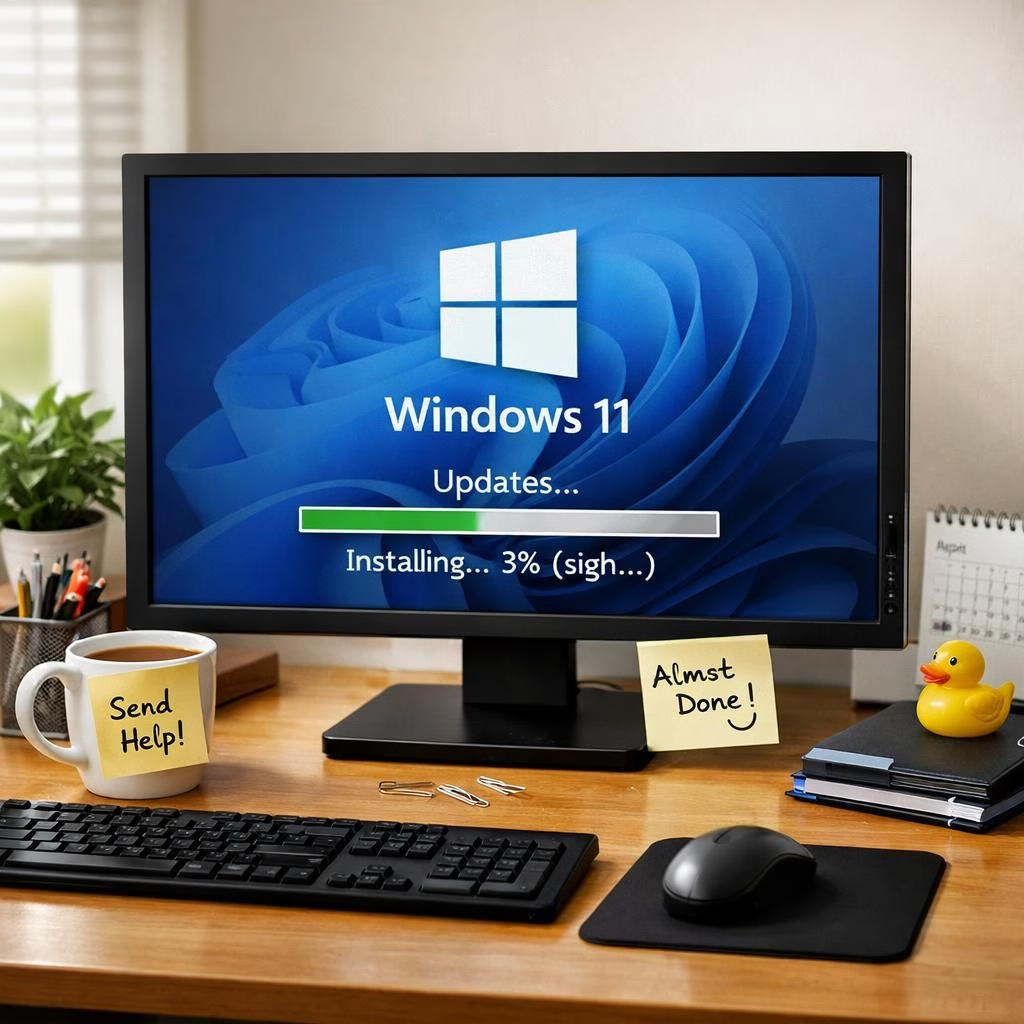
Welcome to a sunny, practical romp through Windows 11 updates in 2026. If patch notes seem dry, this tour shows how updates can be a quiet backbone, not a disruption. The goal is practical, calm guidance for 2026 users who want their PCs to behave rather than throw tantrums. We’ll name the two big players up front: Windows 11 and updates.
First, a quick map of the landscape: Microsoft periodically rolls out feature drops that add useful capabilities, while Windows 11 updates address bugs, security gaps, and occasionally the odd startup hiccup. The year 2026 brings more cadence and some spicy insider previews, including new feature drops and beta channels that let enthusiasts test changes before mainstream users see them. This article nods to those previews, but the real star is how the average user can prepare, respond, and benefit from those updates without turning their device into a restart roulette. The core truth remains: updates are your friend when treated with a little respect, not a daredevil stunt when you’re in the middle of a deadline.
Windows 11 updates in 2026: Practical tips and bright side
Let’s anchor our discussion with a few practical takeaways. Expect occasional boot hiccups or startup prompts as updates reorganize the gears behind the scenes. Back up important files before major feature drops or cumulative patches so you have a safe harbor if something goes awry. These moments are usually brief and clear away older issues that could slow you down later.
Tech notes aside, the 2026 cycle emphasizes transparency and better rollout practices. Microsoft often pairs feature drops with insider previews, so enthusiasts can test changes early. That feedback loop helps engineers spot edge cases and fine-tune performance for real-world use. For typical home or small‑business users, the takeaway is simple: stay informed about when a feature drop lands, consider deferring non-critical updates if you’re on a tight schedule, and keep a recovery drive handy just in case a major patch throws a curveball. In practice, this reduces downtime and keeps your productivity in the driver’s seat. In other words, be curious, be prepared, and let the updates do their job without turning your workflow into a jittery hopscotch.
Now, to a few concrete habits. Enable System Restore or create a restore point before heavy updates arrive. This isn’t paranoia; it’s a sensible safeguard that lets you roll back if something odd happens, like a compatibility hiccup with a legacy app or a driver mismatch. Use the Update History viewer to spot trends: are there patches that consistently cause brief reboots? If yes, schedule around them or seek alternatives. And when you install updates, take advantage of the new security baselines and privacy improvements that come with 2026 releases. They’re not flashy, but they quietly raise the floor of your daily experience. The upshot is simple: you get fewer surprises if you keep a steady rhythm with Windows 11 updates and treat each patch as a chance to improve your everyday computing.
Windows 11 updates: What to watch this year
Startups issues and occasional blue screens get less scary once you know where to look. If you’re seeing a boot loop after an update, you’re not alone, but you’re also not stuck. The recommended steps are practical and repeatable: perform a clean boot to isolate software conflicts, update device drivers, and verify that your firmware is compatible with the latest Windows 11 requirements. If a reboot becomes a ritual rather than a fix, roll back the last update and re-evaluate the timing of installation. In many cases, a small driver update or a refreshed BIOS can resolve stubborn boot loops. The key idea is to stay patient, methodical, and note the exact patch that preceded the issue so you can search for targeted fixes or official guidance.
There are also notable improvements in quality of life with 2026 updates. The aim is to reduce friction, streamline search and task switching, and make the OS feel less intrusive while preserving strong security. For gamers and creatives, the bug fixes around performance and stability can translate into smoother frame rates, fewer crashes, and more reliable driver interactions. For remote workers, these updates can translate into fewer unexpected reboots during a critical video call or presentation. The optimism here is sincere: when updates work as intended, they feel like quiet modernization rather than disruptive chaos. And yes, we can still crack a smile when a patch finally resolves a long-standing annoyance rather than creating a new one.
In sum, Windows 11 updates in 2026 represent a thoughtful balance between feature enhancements and reliability. The best advice remains pragmatic: back up often, verify compatibility, and approach each patch with a calm plan rather than a panic sprint. If you treat updates as an ongoing improvement project rather than a random blast of changes, you’ll notice fewer surprises and more confidence in your daily computing life. And that confidence is the real payoff: you’ll spend less time wrestling with the machine and more time achieving your goals with a computer that feels both capable and approachable.
Original source material and additional context are acknowledged via the linked articles from Windows Central, Windows Blog, Neowin, PCWorld, and OC3D. We extend a heartfelt thank you for the detailed reporting that helped shape this balanced overview of Windows 11 updates in 2026.
Original material and further reading: Original Windows Central article — thanks for the thoughtful groundwork that inspired this piece.
Want to weigh in? Share your thoughts in the comments below and tell us how these Windows 11 updates have affected your 2026 workflow. Your experiences help others navigate patch days with a bit more confidence.
Practical steps for Windows 11 updates management
Here are concrete steps you can take today to keep patch days calm and productive.
- Create a restore point or System Restore before applying major updates.
- Review the Update History to identify patterns and timing that work for your schedule.
- Back up critical files to a secure location before a patch lands.
- Prepare a recovery drive so you can roll back quickly if needed.
FAQ about Windows 11 updates
What is a feature drop and how should I view it?
A feature drop is a larger refresh that adds capabilities beyond routine fixes. Treat it as an opportunity to improve daily workflows, but assess compatibility with essential apps first. If you rely on legacy software, test in a controlled window before wide deployment.
Should I defer updates when I’m busy?
Deferring non-critical updates can help protect a tight schedule, but don’t delay security fixes too long. A balance—deferral for convenience, then timely installation when you have a window—tays your system safer without derailing work.
How can I check compatibility before a patch lands?
Review vendor notes, test critical apps in a controlled environment, and ensure drivers are up to date. If you’re unsure about a driver, check the exact model and firmware requirements before the updates roll out to avoid surprises.
What if I experience boot loops after an updates?
Stay calm: boot loop symptoms typically involve a failed driver or a conflicting program. Try a clean boot to isolate software, update essential drivers, or roll back to a restore point. If the loop persists, a recovery drive can help restore a stable baseline.
References
- Microsoft Windows Release Information: https://learn.microsoft.com/en-us/windows/release-information/
- Windows Blog (official): https://blogs.windows.com/
- Microsoft Security Blog: https://www.microsoft.com/security/blog/
- Original Windows Central article: Original Windows Central article