

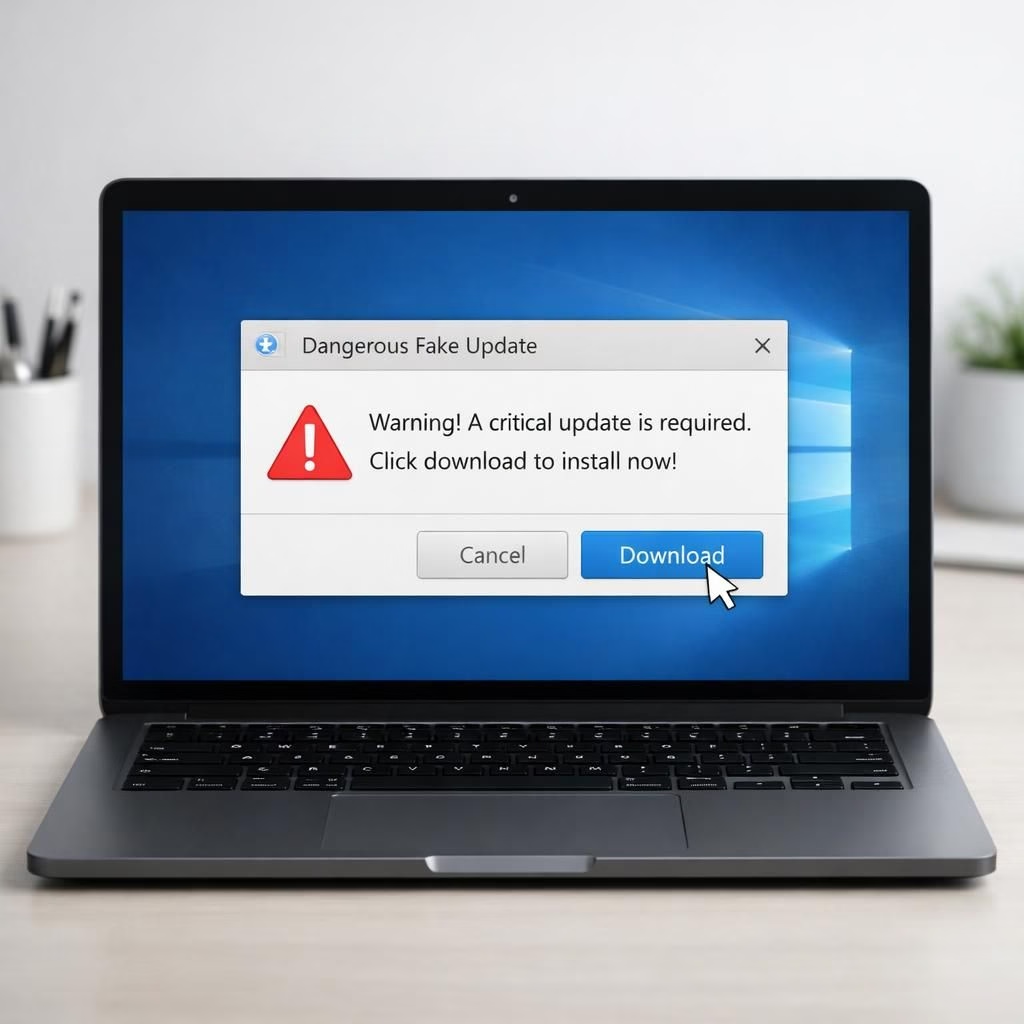
In 2026, Windows Updates and Cybersecurity awareness go hand in hand, as scammers push glossy prompts that mimic legitimate notices. The truth is simple: dangerous fake Windows Update prompts exist, and Cybersecurity best practices save you from clicking into a phishing pit. Stay curious, stay cautious, and stay patched—that’s how you tame the pop-up beast.
Windows Updates and Cybersecurity: Spotting the Fake Prompt
Scammers love urgency. They flash banners that look official, and they hide the real file behind a flashy download button. The trick works because people click in a hurry, then install something they should not. A typical fake Windows Update tries to trick you into giving admin rights or rebooting at a bad time. The moment you see a prompt that screams “update now” with red warnings and a timer, pause. Check the source of the prompt. If it came from a browser tab rather than the OS update utility, it is probably a counterfeit. This is where Windows Updates meets Cybersecurity—when we ask, is this legitimate?
- Urgent prompts that override your normal update flow.
- Requests for admin rights or to disable security features.
- Prompts coming from a browser tab rather than the official update tool.
- Unusual domains, typos, or downloads that arrive from a link.
What to do instead? Open your official update settings through the Start menu or system preferences, not the suspicious banner. Look for a legitimate patch. Verify the publisher and the digital signature. If in doubt, pause and search the official site for the latest Windows Updates rather than trusting a pop-up. Use a trusted antivirus as a secondary check, but rely on your own caution first. In short, the rules are simple: verify, verify again, and verify one more time. A careful eye beats a fast click every time.
People often tell me they nearly installed a fake update because the prompt looked so official. That is exactly the moment where Cybersecurity wins. The difference between a genuine update and a counterfeit prompt is subtle but real: real updates come from the OS’s trusted channels, and the installer signature checks out. Fake updates often ask you to disable safeguards or to install from a browser link. Do not do either. If the prompt asks you to bypass protection, walk away. If it asks you to disable security features, close the window and head to the official update tool.
For context, in 2026 the threat landscape continues to rely on familiar social engineering plus a sprinkle of new tactics. The attackers rely on fear of lagging security and the desire to protect a system that looks outdated. They rely on the assumption that you want a quick fix. The best fix is a methodical approach: use real Windows Updates, keep your signatures up to date, and enable automatic updates where practical. That is the core of reliable Cybersecurity hygiene when dealing with Windows Updates.
Cybersecurity Best Practices for Real Windows Updates
Let me state the obvious with a smile: real Windows Updates come from trusted sources, not through unsolicited pop-ups. The difference is not just about a brand badge, but about the underlying telemetry and the verification steps. For many users, the best defense is to turn on automatic updates, which reduces the chance of clicking the wrong thing. It is not enough to rely on a single layer. You need a multi-layered approach: a reliable update channel, an active Cybersecurity, and a healthy dose of skepticism toward anything that says “urgent.”
Keep security settings tight. In your browser, disable pop-ups for update prompts from unknown sites. In your operating system, disable the ability to run questionable installers from random downloads. In practice, that means you control when and how updates install, not a rogue banner. In a world of fast clicks, slowing down is a superpower. You will thank yourself later when your system remains intact and your data stays yours.
What does effective Cybersecurity look like in everyday life? It means staying current with patches, using strong authentication, and backing up important data. It means not clicking the download button on a random page, no matter how urgent the message sounds. It means educating family members and coworkers about the telltale signs of a fake Windows Update. If you can explain the difference between a legitimate update and a scam to a friend, you have already improved your own security posture. The goal is not perfection but resilience.
Finally, for those who want a practical checklist:
- Use the official Windows Update tool.
- Check the publisher and digital signature.
- Do not download installers from unknown links.
- Enable automatic updates where possible.
- Run a quick malware scan if you suspect a compromise.
- Keep backups, because a good backup makes recovery painless.
In practice, these steps translate into fewer moments of panic when a pop-up appears and more confident clicks on what you know is legitimate. The word is simple: Windows Updates should come from a trusted source, and Cybersecurity is the ongoing practice of verifying, updating, and backing up. Keep the habit, and you keep the danger at bay.
Original article attribution: Dangerous Fake Microsoft Windows Update Confirmed—Do Not Download — Thank you for the original coverage. Have thoughts to share? Please post them in the comments to help others stay safe this year.
References
- Dangerous Fake Microsoft Windows Update Confirmed—Do Not Download — Forbes
- Phishing guidance — CISA
- How to spot phishing scams — FTC
FAQ
-
What counts as a legitimate Windows Update prompt?
Legitimate prompts come through the OS update mechanism and show verified publishers and a valid digital signature.
-
Is it safe to click a banner that says “update now”?
No. If you did not initiate the update from the official Update tool, pause and verify through the Start menu.
-
How can I protect family members from fake updates?
Explain the signs of a fake prompt and set automatic updates where possible to reduce exposure to prompts.