

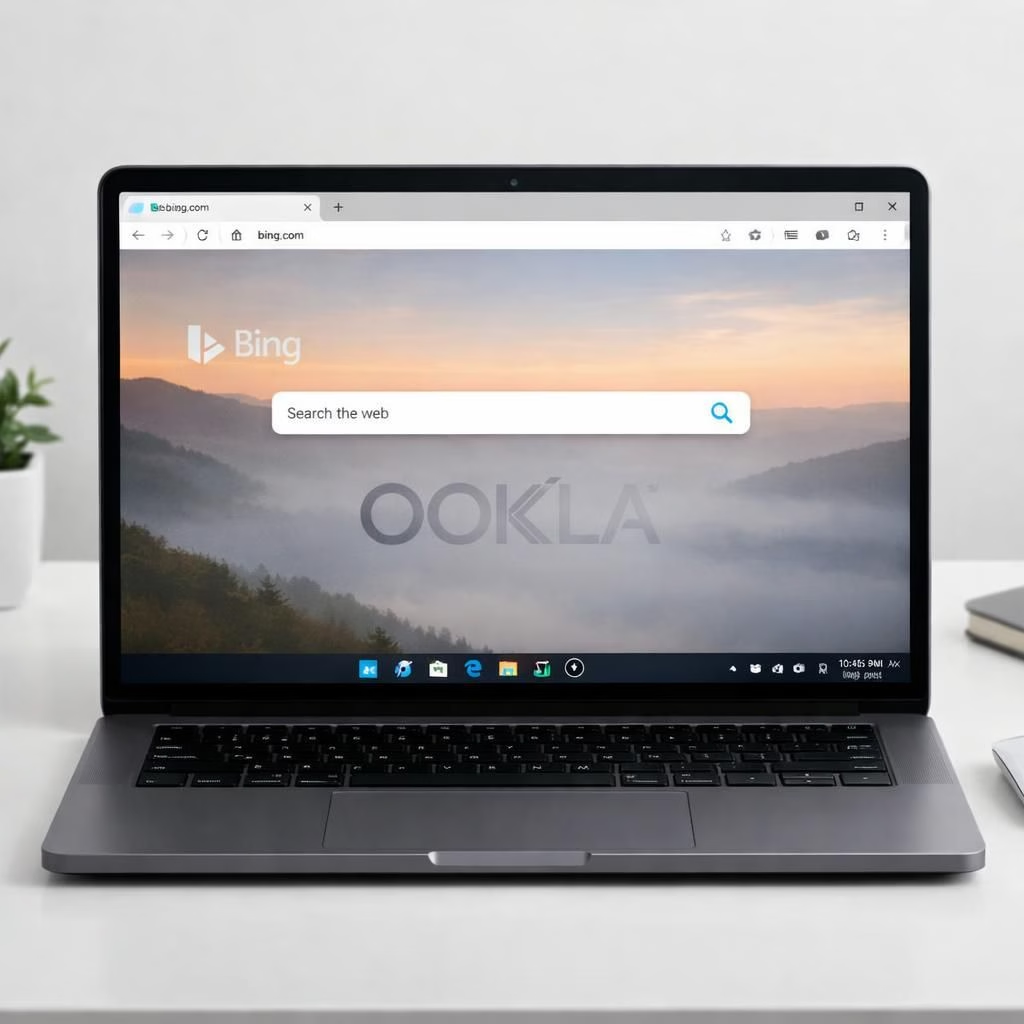
In 2026, Windows 11 nudges itself toward a more connected life with a built-in network speed test you can call from the taskbar. The feature currently redirects you to Bing to trigger an Ookla-backed check, showing download, upload, and latency as quick numbers. It’s a modest first step, a sign that Microsoft listens to users who want a fast ping without juggling tabs. The core truth remains: this isn’t a fully integrated Windows 11 feature yet, but it signals a shift toward easier, one-click diagnostics. If you measure your home network by energy and ease rather than flawless streaming, this is a welcome simplification that respects your time while nudging you toward data-driven decisions.
Windows 11 network speed test: Taskbar convenience, Bing detour
Here’s how it works today. The speed test icon sits on the taskbar; clicking it opens Bing, not a native Windows app. That detour keeps things simple for now. Behind the scenes, Bing routes the request to Ookla’s engine, and the results appear as download speed, upload speed, and latency. The user experience is clean but not seamless. You still leave Windows to start the test, which feels like a designed compromise rather than a breakthrough. Still, it’s a welcome nudge toward faster troubleshooting when your internet seems slower than your coffee’s ability to brew itself. The Windows 11 platform remains the stage, while the network speed test acts as a bridge to reliable data about your connection.
Why this Windows 11 network speed test matters now
For many users, the practical network speed test is more about habit than precise numbers. Bringing a built-in test into the OS encourages regular checks whenever you suspect trouble. Bing isn’t a bad host for this, given its ubiquity, but the backend remains Ookla, a name many trust for measuring modern networks. That means consistent results across sites and a familiar baseline when you troubleshoot. The downside is the manual step: you click, you go to Bing, and you run the test. There is no native panel that runs the test inside Windows yet. Still, the feature reduces friction in finding a speed test site, which is a plus in a world full of network anomalies, service plans that promise “up to” speeds we rarely see, and streaming that constantly battles bandwidth hunger. For home users, this small convenience can prevent unnecessary calls to support when a mid-day slowdown happens. Enterprise users may enjoy a quick sanity check before escalating issues to the IT desk.
From Bing and Ookla to potential Windows 11 integration
Microsoft rolled this out in Release Preview for Windows 11 Insiders, a sign that the feature is moving toward broader availability. The path to full integration could bring an internal tool or app that shows the results directly within Windows, not via a browser. Store-based speed test apps already exist and can deliver integrated results with notifications, but the case for a native, single-panel experience is strong. The idea is simple: you want a quick, repeatable measurement that tells you when you should troubleshoot or adjust your setup. If other developers can deliver that level of integration, Microsoft could copy the pattern and provide a more cohesive experience. The current approach is still useful for people who are learning about alternative speed tests, and it serves as a bridge to more native functionality later in the Windows 11 lifecycle.
Practical tips for using the Windows 11 network speed test today
To make the most of this Windows 11 network speed test, here are practical, not dogmatic tips. First, compare Bing-backed results with a trusted native or web-based test to understand variance. If you already rely on Speedtest by Ookla from the Store, run it as a cross-check, but treat it as a data point rather than a final verdict. Remember that network conditions shift with time of day, background updates, and router activity. Use the taskbar network speed test as a quick sanity check after a router reboot, a firmware update, or a new device on the network. For most households, testing at different times helps reveal noise in the line or lingering congestion, rather than a true speed cap from your provider. If your goal is clear benchmarks for streaming or gaming, run several tests in a row and log the results to spot patterns, not one-off blips. Treat this Windows 11 network speed test as a friendly nudge toward regular checks rather than a definitive, all-purpose tool.
Paths to a more integrated Windows 11 network speed test
Looking ahead, the simplest path to a fully integrated Windows 11 network speed test is a native panel that answers with the results inside the OS, not a browser window. The product teams could reuse the Ookla backend while presenting a cleaner, Windows-native dashboard with history, trends, and alerting. A richer integration could surface the latency and jitter metrics, packet loss, and regional server selection in a compact, glanceable view. Store apps could feed into a central diagnostics hub, and Windows could offer a one-click mode to run tests automatically when a problem is detected. Until that day, the current approach remains a useful compromise: it gets you started quickly and points you in the direction of more integrated tools without forcing a major switch in habit.
In the end, the Windows 11 network speed test signals that Microsoft is listening to everyday needs without rewriting how we diagnose networks. It is not yet a one-stop, fully native instrument, but it is a practical, user-friendly nudge toward a more integrated experience. As the feature matures, we may see a fully internal speed test that delivers richer metrics and smarter alerts right in Windows. For now, this approach respects your time and curiosity, and it keeps you grounded in real-world testing. If you have thoughts, experiences, or a wish list for a future Windows 11 network speed test, please share your thoughts in the comments. Thanks for reading and for the original ZDNET material that sparked this exploration.
External sources and references follow below.