

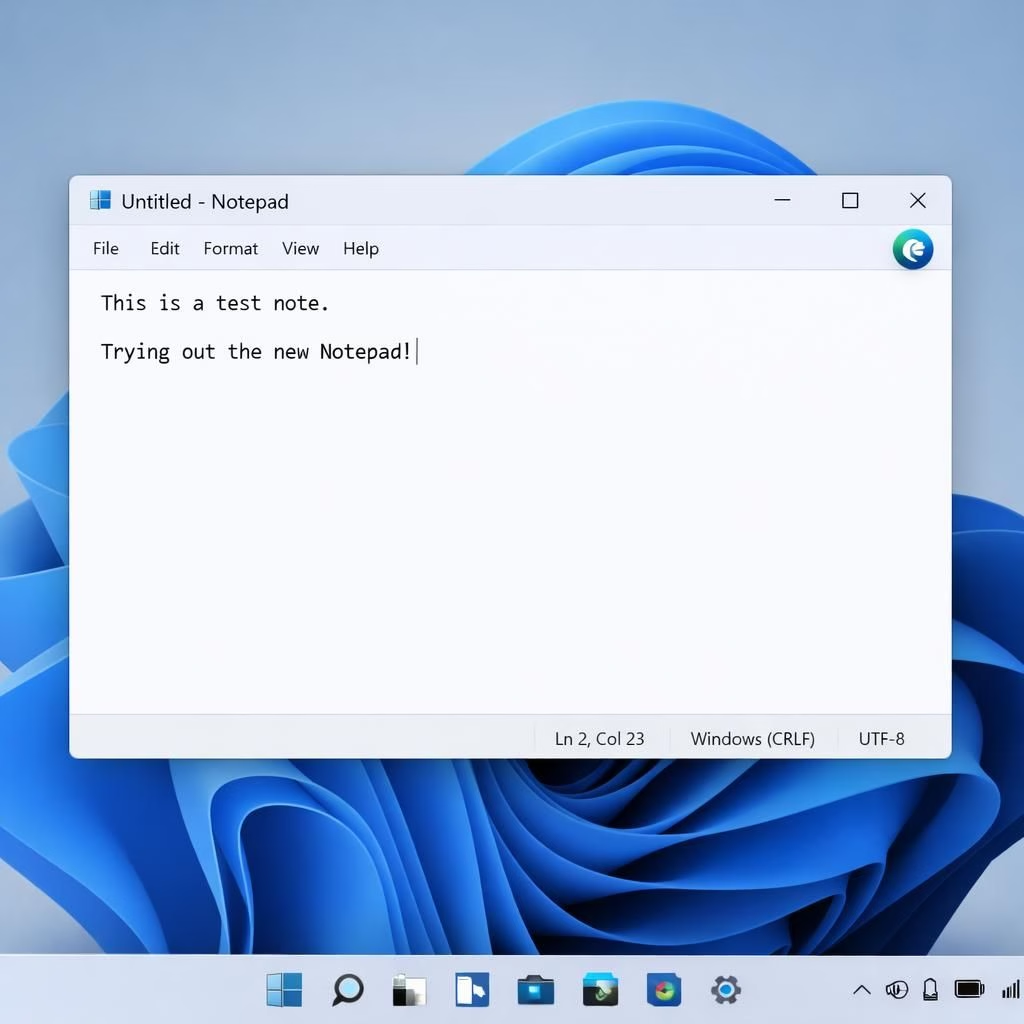
In Windows 11, Copilot changes are getting a quieter, more purposeful makeover. The goal is to keep the AI helper useful without turning every app into a 64-bit demo reel. Early reports indicate that Microsoft is removing some Copilot buttons from Notepad, Snipping Tool, and other built-in apps, choosing instead to offer a streamlined experience that respects performance and user choice. This shift feels like a pragmatic compromise: the AI is still there when you need it, but it won’t chase you down every menu with a suggestion parade.
From a design perspective, this is less about villainous simplification and more about skilled tuning. The Verge highlighted the change, Mozilla’s blog chimed in with a playful warning, and Windows Latest teased that not every Copilot crumb is being swept away. The core idea is to keep Copilot available where it shines—assistance on long-form tasks, complex editing, or data wrangling—while removing clutter from quick, everyday actions. In short: less noise, more helpful nudges, and better performance across Windows 11 systems in 2026.
Removing a button does not delete the feature. It repositions Copilot as a choice rather than a constant companion. That shift matters for power users who prefer keyboard shortcuts, experienced operators who want a fast, minimal interface, and developers who want to reuse Copilot with intention rather than habit. The result is a Windows 11 experience that still feels modern and forward-looking but respects the warning signs of feature creep: memory pressure, slow startup, and notification fatigue becoming real issues for ordinary tasks.
Copilot in Windows 11: A gentle UI shift
Notepad 25H2, a classic nostalgia app, loses its dedicated Copilot button, while the Snipping Tool inherits a lighter touch. The user can still summon Copilot via context menus or the global shortcut if needed, but the default presence in every window is gone. The change aims to reduce RAM usage and reduce accidental prompts, especially on lower-spec devices. This is a practical demonstration of how integration in software ecosystems should behave: visible when useful, quiet when not. In Windows 11, it signals a shift toward AI that serves the user rather than steals the show.
Windows 11 users and Copilot tweaks explained
What does it mean for a typical user? It means you can get your Copilot tips when you want them, not when your Windows 11 is busy analyzing your text. It means you can concentrate on the content without a Copilot flood of suggestions. For 2026, this approach aligns with a broader trend: AI features are moving from default presence to optional assistants that you can summon with purpose. If you rely on Copilot for long sessions, you can pin it to the taskbar or use a shortcut. If you don’t, you won’t be interrupted.
- Tip: Use keyboard shortcuts to invoke Copilot only when needed.
- Tip: Enable the global Copilot toggle in Settings if you want a quick re-enable across apps.
- Tip: Review privacy and data access preferences for Copilot per app or per session.
Security and privacy considerations are central. In 2026, the mindset shifts toward giving users more control. You can disable or limit Copilot prompts per app or per session. The technology remains powerful; the delivery is now friendlier, not pushier. With this balance, Windows 11 maintains modern OS vibes without sacrificing performance or user autonomy.
Industry watchers describe this as a modular approach to AI features. The Verge’s reporting framed the action as a need to curb excess, while Mozilla’s take celebrated the reminder that AI should serve rather than overwhelm. Windows Latest teased that the full Copilot suite won’t vanish, but its presence will be more surgical. These perspectives help readers see the broader arc of AI in core OS apps and how developers will adapt. In 2026, a modular approach helps focus Copilot where it adds real value on Windows 11.
From a developer perspective, the change invites smarter design choices. If your app depends on Copilot nudges, you should build optional prompts that appear at moments of friction or complexity. The shift puts responsibility on the app to decide when help is truly needed, rather than forcing a pop-up in every window. That mindset should yield apps that feel lighter, faster, and more focused on task completion.
Ultimately, this is less about a single button and more about the user experience. The shift invites developers and users to rethink where AI belongs in everyday software. If you want more Copilot help, you can still access it; if you want a cleaner desktop, you can enjoy that too. The key is intention: AI on demand beats AI on autopilot every time.
Original article: The Verge reported on the Copilot button removal in Windows 11 apps. Thank you to The Verge for the original reporting and thoughtful coverage: Microsoft starts removing Copilot buttons from Windows 11 apps.
What do you think about Copilot in Windows 11? Share your thoughts in the comments below.
References
- The Verge: Microsoft starts removing Copilot buttons from Windows 11 apps
- Mozilla Blog: Old habits die hard—Microsoft’s AI choices