

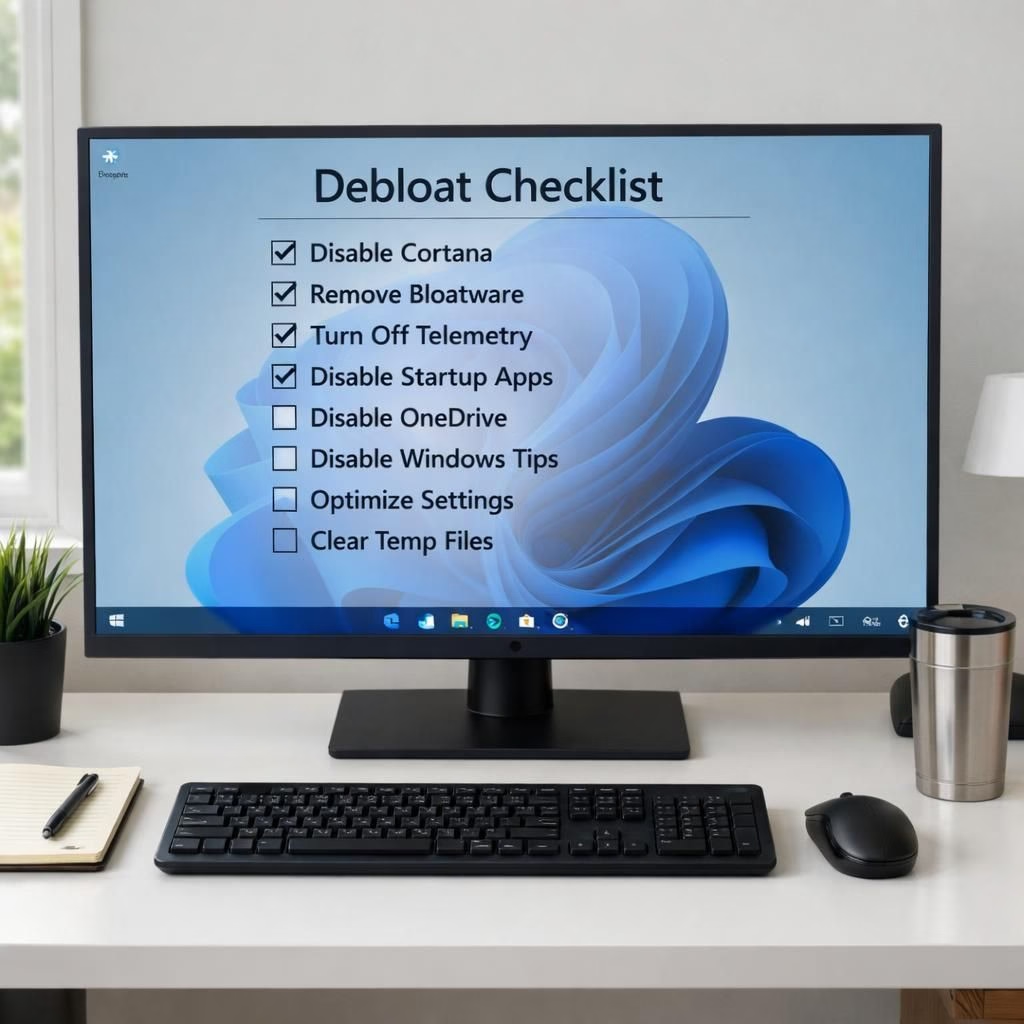
Windows 11 debloat: practical steps for a cleaner PC
Windows 11 [Tag B](https://www.geekyopinions.com/tag/debloat) shows that a cleaner PC can be achieved without losing essential features.
This practical guide treats junkware, ads, and background tasks as solvable issues rather than fate. You can reclaim speed, reduce distraction, and keep the features you actually use.
In 2026, voices—from PCWorld to How-To Geek—agree that you can trim away the excess without breaking your system.
The trick is to choose deliberate, reversible steps rather than a risky reset. If you want your computer to feel like it did when you first unboxed it, you’re not dreaming; you’re taking control.
Quick starter checklist for Windows 11
- Review startup items in Settings > Apps > Startup and disable anything you don’t need.
- Uninstall or disable apps you rarely open to reduce UI clutter and background chores.
- Turn off nonessential telemetry and ad-related settings to calm prompts and distractions.
- Clean up temp files and caches with built-in tools like Storage Sense to keep drives tidy.
These steps are safe, reversible, and straightforward enough for most users. The goal is not to strip away personality but to remove what slows you down. That means you can re-enable anything that proves useful later, without rewrapping your computer in mystery software. It’s about creating a smoother baseline so you can focus on what you actually want from Windows 11.
Debloat Windows 11 safely in 2026: approach that respects privacy
Privacy matters, and a well-aimed [Tag B](https://www.geekyopinions.com/tag/debloat) strategy helps you regain some real control. Start with a privacy audit: review what data Windows 11 sends by default and adjust toggles where possible. Use a local account if you can, limit ad ID sharing, and opt out of configuration that tracks app usage. If you value transparency, keep a small log of changes so you can reproduce the results later or revert at a moment’s notice. You don’t have to go full hermit on your PC; you just need a thoughtful privacy master switch approach—one that gives you visibility and reassurance as you customize.
Open-source tools can help, but choose them with care. If you test [Tag B](https://www.geekyopinions.com/tag/debloat) optimizers, do it on a non-critical user profile first, and avoid anything that makes sweeping changes without a safety net. The previous wave of Windows 11 tweaks—whether you saw guidance from MakeUseOf or Windows Central—tends to stress reversibility and clear user control. In practice, you’ll end up with a faster, more predictable environment where you decide what belongs in your day-to-day workflow.
Practical safeguards always accompany progress. Create a restore point before you dive in, and back up essential data. After you complete a change, test essential tasks: open your most-used apps, run a quick file search, and confirm that notifications still arrive when you expect them. If something feels off, revert the last tweak and try a gentler alternative. A measured approach keeps you from chasing a phantom speed boost with risky shortcuts, and it keeps Windows 11 [Tag B](https://www.geekyopinions.com/tag/debloat) friendly rather than frenetic.
Surprisingly, many readers respond best to a steady rhythm: one or two tweaks per day, followed by a calm usage period to observe impact. This method aligns with the spirit of the original reporting in the tech press, which emphasizes safety, reliability, and real-world results. You don’t need a hacksaw; you need a screwdriver—adjust, test, repeat, and enjoy the incremental gains that accumulate into a noticeably smoother experience.
For those who enjoy a touch of humor in their optimization journey, imagine your PC as a tidy desk: fewer distractions, more space for the work that matters, and a lighter footprint on your energy bill. It’s not a fantasy; it’s a practical plan you can implement in a few quiet sessions. You’ll find that Windows 11, when [Tag B](https://www.geekyopinions.com/tag/debloat) thoughtfully applied, becomes a capable partner rather than a confounding conundrum.
Two quick reminders before you start: back up first and take it slow. If you ever feel uncertain, pause and consult reputable guides; there’s wisdom in moderation. Your future self will thank you for choosing measured, well-documented steps over impulsive tinkering. And if you enjoy this approach, you’re not alone—enthusiasts across communities share a common goal: a cleaner, kinder Windows 11 experience that respects your time and your privacy.
We’d love to hear your experiences with Windows 11 debloat. Have you found a favorite tweak that keeps your system stable while restoring speed? Share your tips and stories in the comments so others can learn from your wins and missteps.
Special thanks to the original articles and communities that sparked this discussion and inspired a thoughtful, user-first approach to Windows 11 debloat. Original material and thoughtful commentary across PCWorld, How-To Geek, MakeUseOf, Windows Report, Windows Central, and beyond helped shape this guide. If you’d like to see the exact sources that influenced this piece, you can explore the broader conversation here: PCWorld — original coverage on Windows 11 adjustments.
FAQs about Windows 11 debloat
Q1: What is the safest first step when you start the [Tag B](https://www.geekyopinions.com/tag/debloat) on Windows 11?
A1: Begin with non-destructive changes such as disabling nonessential startup items, then test essential tasks before proceeding.
Q2: Will the [Tag B](https://www.geekyopinions.com/tag/debloat) affect stability?
A2: If you proceed slowly and create restore points, you can revert any change that causes issues while keeping gains from the improvements.
Q3: Should I use third-party tools?
A3: Only after you test on a non-critical profile and prefer reversibility; rely on reputable tools and manual steps when possible.
Conclusion: a calmer, capable Windows 11
In short, a thoughtful approach to [Tag B](https://www.geekyopinions.com/tag/debloat) on Windows 11 can yield a faster, more predictable computer without sacrificing essential features. Start small, stay curious, and track what improves over time so you can keep the momentum with confidence.
References
Original source: PCWorld — Strip out Windows 11’s bloatware for free. PCWorld article
External sources: Microsoft Windows privacy overview, How-To Geek Windows tips, Windows Central guides