

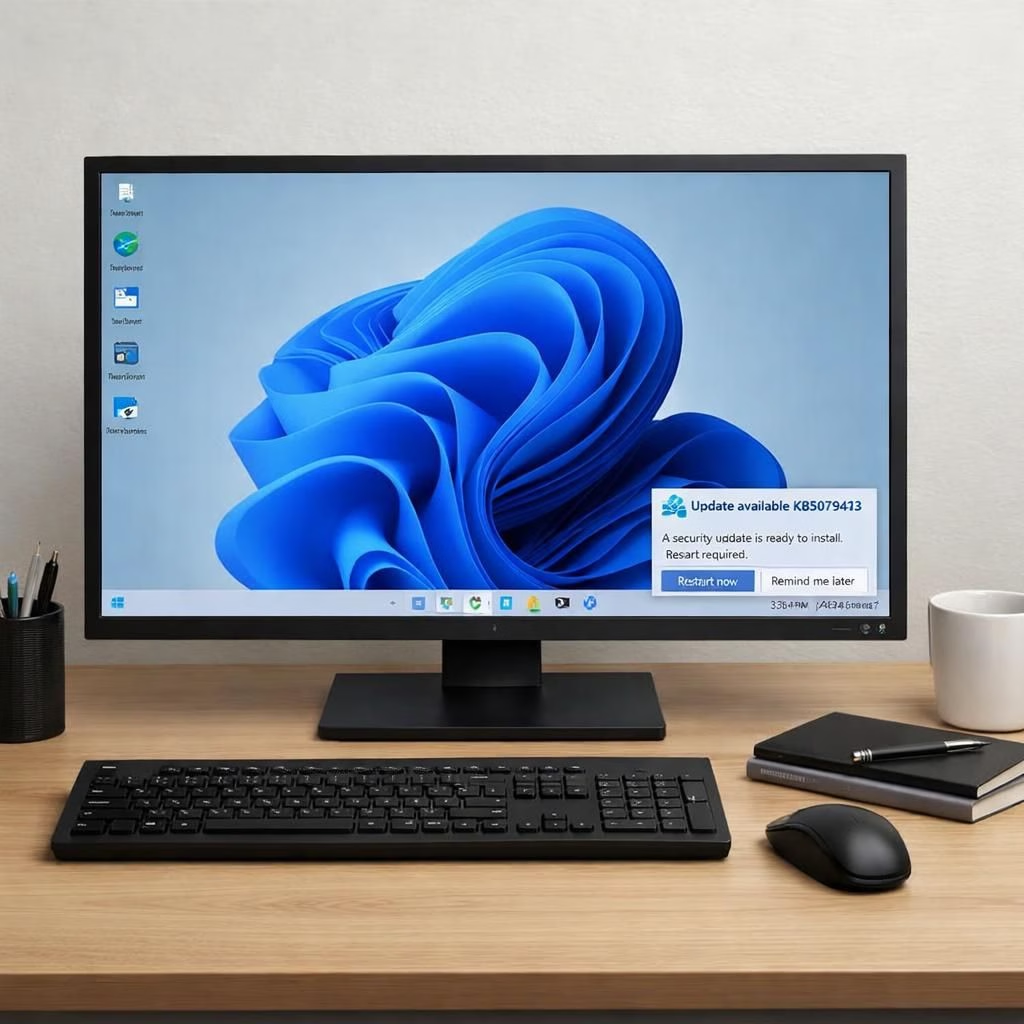
Windows 11 users faced a hiccup when KB5079473 attempted to install and triggered a reboot loop. The issue also brought freezes and graphics glitches on some devices, testing patience across the ecosystem. This guide offers practical, no-fluff steps to navigate the storm in 2026, with a light touch and clear actions. Remember: Windows 11 and KB5079473 improvements come with careful steps and patient troubleshooting.
Windows 11 and KB5079473: What happened and how to reset expectations
During the rollout, some systems reran the install cycle rather than finishing.
Reboots repeated, leaving screens dark and fans busy.
A subset of users reported graphic glitches, which are alarming but typically solvable with methodical workarounds.
The root cause varied by hardware configuration and driver versions, so a one-size-fits-all fix rarely applies.
Still, the pattern is clear: early reports spiked, but a steady process of updates and driver checks tends to restore calm.
We also saw File Explorer behavior change in subtle but noticeable ways as the system recalibrated—an early sign that the OS is learning from the hiccups rather than giving up.
Windows 11 users should stay hopeful and pragmatic, especially in 2026 when security and stability updates are prioritized.
In practice, the community leaned into a few reliable steps: pause, back up, and test.
If a reboot loop returns, boot into safe mode, check for the latest drivers, and clear pending updates before retrying.
If graphics appear corrupted, a clean driver reinstallation often does the trick.
The goal is not to chase perfection but to achieve a dependable daily workflow.
Remember, even a stubborn update can yield long-term gains if treated with patience and a bit of humor.
KB5079473 updates in Windows 11: Best practices for 2026
Beyond the hiccups, users noted that KB5079473 quietly brought some positive changes.
File Explorer speed improvements were reported when searching This PC or multiple drives, a welcome nudge toward smoother day-to-day tasks.
These improvements demonstrate how updates can refine the user experience even when initial installations feel like a detour.
To maximize these benefits, consider a few practical habits: keep a fresh backup plan, run the Windows Update troubleshooter if something stalls, and verify that all device drivers are current.
If you rely on specific hardware or software, check compatibility forums for reported tweaks that match your setup.
In a 2026 security-first mindset, the best defense is a lightly managed update cycle paired with routine maintenance and data protection.
For those who want to stay proactive: schedule updates during low-usage windows, stagger restarts to avoid surprises, and keep recovery media handy.
If you encounter persistent freezes or graphic anomalies, disable non-essential startup items, perform a clean boot, and test with a minimal set of apps.
These steps reduce the friction that often accompanies new Windows 11 updates and KB5079473 in particular.
The aim is simple: keep work flowing, not paused, while the OS earns its keep through incremental improvements.
We should also acknowledge the bigger picture: ongoing updates in 2026 reflect a trend toward stronger security, better device compatibility, and improved diagnostics. While the initial experience may feel bumpy, the long arc points toward a more stable Windows 11 environment. If you are juggling multiple devices or a mixed enterprise setup, apply the same disciplined approach across machines. This consistency reduces the risk of cascading issues and makes the update process more predictable for teams and individuals alike.
If you want a hands-on checklist, here’s a concise one:
- Back up important data before updating.
- Run Windows Update and install any pending fixes in stages.
- Update device drivers, especially for graphics hardware.
- Use the Windows Update Troubleshooter if installation stalls.
- Test core tasks after each major step, noting any regressions.
- Consider clean boot to isolate software conflicts during troubleshooting.
For readers curious about the social side of tech hiccups, a little humor helps. We can treat each reboot loop as a reminder to save work often and to approach tech with calm curiosity. The real win is not a flawless update, but the knowledge to recover quickly when things go sideways. In 2026, this philosophy keeps users productive and, frankly, less frazzled.
Original article: Neowin coverage on Windows 11 KB5079473 issues. Thank you to the Neowin team for the original reporting and thoughtful discussion surrounding these updates.
Staying aligned with Windows 11 best practices
Adopting disciplined update habits helps keep devices reliable across 2026 and beyond. Regular backups, scheduled maintenance windows, and a streamlined recovery plan reduce downtime and risk.
Additional trusted reads
For broader context on how Windows updates evolve, see credible industry coverage and official guidance from Microsoft and established tech outlets.
References
References: Original source linkback is retained above as requested.