

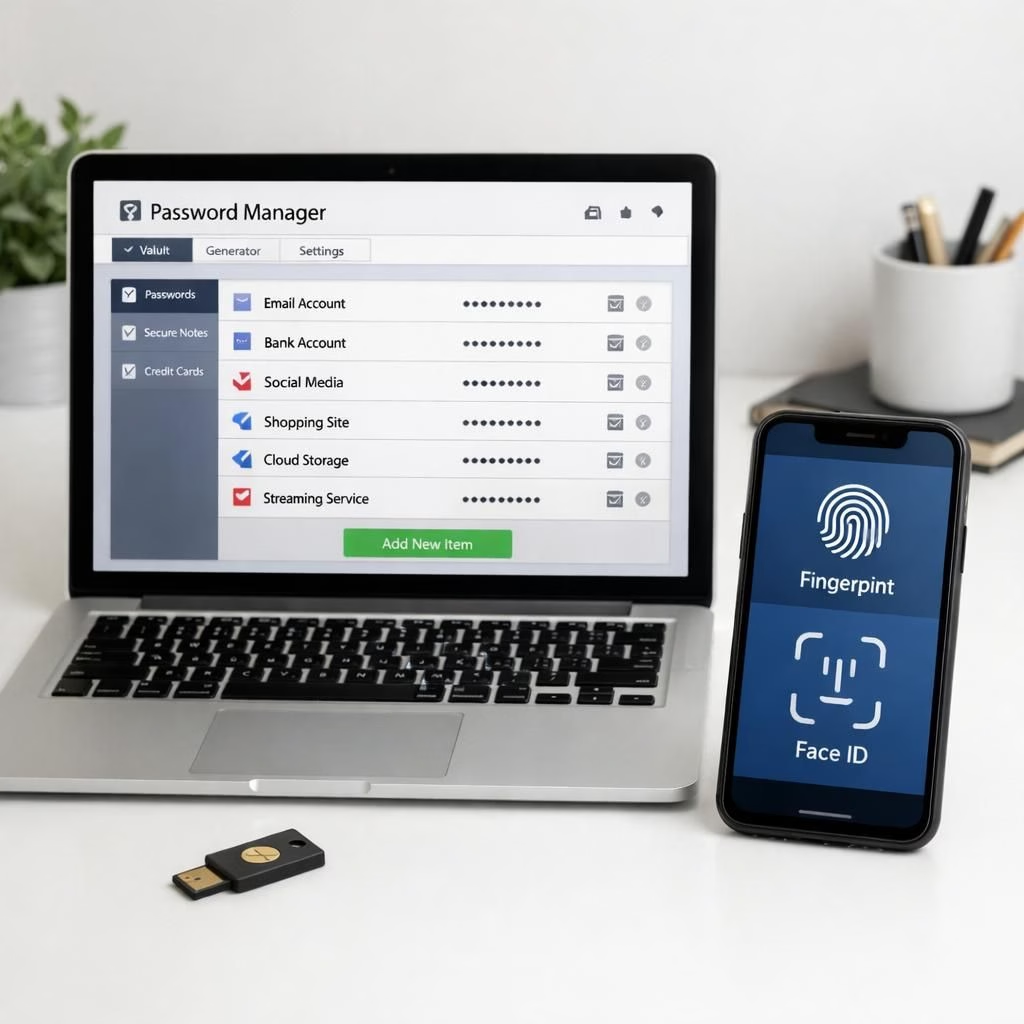
In 2026, our digital lives teem with accounts for banking, shopping, streaming, and more. That means we face a constant need to manage passwords without becoming a human password manager and exposing data. The good news is we can lean on a powerful trio: a password manager, biometrics, and passkeys. Built-in password manager features are no longer a niche option; they sit on every major platform. They store and auto-fill credentials, suggest strong variations, and reduce reuse risk. Add biometrics logins—Face ID, fingerprint, and secure enclaves—and you gain speed and tighter security. And when services use passkeys, you can skip typing altogether. The point here is simple: you don’t need to pay for a premium password service to stay protected. Your device ecosystem already ships quality tools that work well for most everyday users.
password manager basics you already own
Apple’s iCloud Keychain is a well-known example of a password manager on macOS and iOS. It securely saves usernames, passwords, and even credit card data in the cloud, and it autofills on Safari and in supported apps. The password manager concept is simple: it keeps your credentials in one guarded vault, so you don’t rewrite the wheel every login. Windows Credential Manager offers a similar feature set for Windows 10 and 11 users, with integration into the system and Explorer. Google’s Password Manager ties to your Google account and travels across Chrome and Android devices. Each option gives you a no-cost baseline; you can start today without a subscription.
- iCloud Keychain: cross-device sync and autofill on Apple devices
- Credential Manager: seamless Windows OS integration
- Google Password Manager: cloud-backed and Google-account connected
That trio provides a solid baseline. The password manager concept remains a quiet powerhouse for reducing password fatigue without extra cost.
biometrics and passkeys: frictionless access
biometrics such as Face ID and fingerprint unlock speed up login and reduce typing. When you unlock Keychain with Face ID, you can sign in to saved sites without entering a password. Many Android and iPhone apps support biometric login. Passkeys add another layer: they authenticate you with a device-local token rather than a password. WebAuthn standards and platform passkeys allow you to use a local fingerprint or security key. The service accepts your passkey by matching a challenge against your device; you’re in. You avoid password fatigue and reduce phishing risk because you never type a password to log in.
biometrics isn’t just a gimmick—it’s a practical shortcut that keeps your hands on the wheel and your data safer. When you pair biometrics with a passkey, you build a two-factor-like experience that stays convenient. This combination scales nicely across many apps and websites that support WebAuthn and platform-specific logins. In short, biometrics + passkeys are a smart upgrade path for most everyday users.
AI IAM on the horizon: what IBM Verify hints at
New AI-powered identity and access management (IAM) tools promise smarter protections. IBM Verify and similar solutions use AI agents to manage user access while guarding against phishing and credential theft. For consumers, the current practicality is limited, but the trend matters. It signals a future where machines help keep your accounts safe without you doing extra work. In 2026, you can watch this space and enjoy the present, where built-in tools and passkeys do most of the heavy lifting.
In practice, most users benefit most from using built-in password manager features today, plus biometrics and passkeys, rather than chasing a paid password manager subscription. If you routinely operate across Mac, Windows, and Android, you might mix and match tools to suit each device. The key is to know what you have and how to use it: iCloud Keychain for Apple owners, Credential Manager for Windows devotees, and Google Password Manager for cross-platform users. You can still complement these with passkeys and biometrics to cut down on password fatigue and phishing exposure. AI IAM offerings deserve attention, but they are currently more of a forecast than a daily tool for most people.
For those who crave deeper security, a layered approach works best: use a password manager where it makes sense, add biometrics for quick unlocks, and deploy passkeys wherever supported. Keep your devices updated. Train yourself to rely on tokens rather than passwords in routine logins. And remember: the goal is not perfection, but practical protection that fits your life in 2026.
Thanks to the original article for inspiration and material. You can read the original material here: Original article.
Practical quick-start steps
- Enable built-in password managers on each major ecosystem (iCloud Keychain on Apple, Credential Manager on Windows, Google Password Manager with Chrome on Android).
- Set up biometrics for device unlocks and sign-ins where available.
- Enable passkeys on sites and apps that support WebAuthn to reduce password use.
- Review autofill settings to limit data exposure on trusted sites only.
Frequently asked questions
-
Do I need to pay for a password manager?
Not necessarily. Built-in password managers cover most everyday needs, and you can rarely outgrow them for standard use.
-
Will biometrics work across devices?
Biometrics can work across platforms that support the same standards, and passkeys help bridge compatibility. Expect some setup on each device for best results.
-
What are passkeys?
Passkeys are device-local tokens that authenticate you without a password. They leverage WebAuthn and platform-specific implementations to sign you in securely.
-
Are passkeys widely supported by sites?
Support is growing. Many major services now offer passkeys, with more sites adding support over time.
Bottom line: you don’t need a premium password service when your devices already bring strong protection tools. Use built-in managers, embrace biometrics for quick unlocks, and adopt passkeys where possible to reduce typing and phishing risk.