

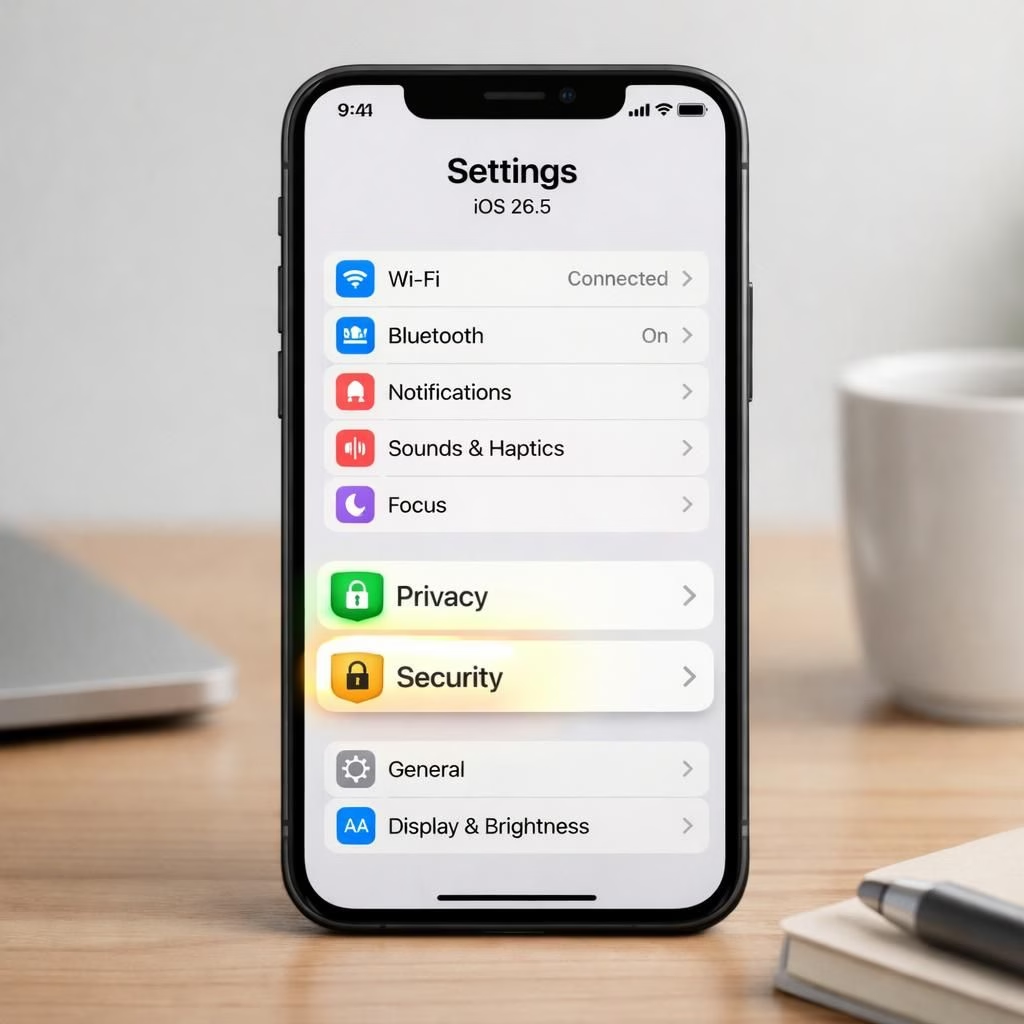
Welcome to a practical, upbeat tour of iOS 26.5, where privacy and security get the spotlight with thoughtful tweaks rather than fireworks. This update quietly boosts efficiency while keeping your data safer and your device calmer. It proves that you can tighten the reins without turning your iPhone into a paranoid fortress—more like a well-trained butler that knows your preferences and never leaks a secret.
Unlike dramatic feature drops, iOS 26.5 leans into small, reliable levers that improve daily use. You won’t find a flashy new app store gimmick here, but you will discover better control over what happens behind the scenes, plus sharper privacy and stronger security posture. Think of it as a garden-variety maintenance update that makes your phone behave with the poise of a seasoned sous-chef rather than a brash celebrity chef.
privacy-focused tweaks in iOS 26.5
The standout privacy win is end-to-end encryption for RCS messaging. Your chats stay between you and the person you are texting, shielded from carriers and prying eyes. If your carrier supports RCS, enabling this feature is a simple flip in Settings > Messages > RCS Messaging. For privacy-minded users, this is a critical upgrade that keeps conversations confidential while you carry on with friends, family, and the occasional conspiracy-friendly group chat.
Beyond messaging privacy, iOS 26.5 offers more granular control of notifications. Notification forwarding, which sends alerts to connected devices like watches, can save you time but also drain battery if left to run wild. To curate it, go to Settings > Notifications and decide which apps are allowed to forward. By restricting this to essential apps, you preserve privacy and conserve energy while staying in command of your digital life across devices. For a deeper look at location-related privacy, see this analysis.
security-minded improvements you can actually use
On the security front, Background security Updates automatically install critical patches without you chasing down updates daily. This keeps your device protected against emerging threats. To activate, visit Settings > Privacy & security Improvements. With this feature on, your iPhone quietly sharpens its security without interrupting your routine.
Another practical tweak is the Audio Zoom feature for video recording. When you zoom toward a sound source, the mic focuses and reduces ambient noise, yielding crisper audio for concerts, lectures, or family gatherings. Activate by going to Settings > Camera > Record Sound and test a quick clip. It’s a small trick that makes your clips feel more professional without extra gear.
Storage careful folks rejoice: podcasts with automatic downloads can bloat space fast. To prevent this, disable Automatic Downloads in Settings > Podcasts. This change helps you manage storage for photos, apps, or one more meme pack, ensuring you don’t wake up to a groaning device that begs for a bigger memory card. Manual downloads let you prioritize what matters most.
A related tweak is the SDR format for screenshots. This reduces file sizes while preserving image quality, which is handy when you need to share a quick shot without clogging your storage. To switch, open Settings > Screen Capture Settings and choose SDR. It’s small, but it adds up when you take dozens of screenshots during a project or a trip.
Battery health remains on the radar with Optimized Battery Charging, which lowers wear by delaying full-charge up to when you actually need it. If you value faster charging more than energy savings, you can disable Clean Energy Charging. These switches give you a straightforward way to balance performance and security longevity to match your routine.
Let’s face a small annoyance: the swipe-to-open camera on the lock screen. It can trigger accidental shots, waste energy, and clutter your library. To stop this, go to Settings > Face ID & Passcode and disable lock screen camera access. It’s a tiny toggle with a big payoff in terms of battery life and organization.
Managing app permissions is now clearer than ever. In Settings > Privacy & Security you can review which apps access location, contacts, camera, microphone, and local network. Revoke permissions for anything you don’t truly need. Strengthening privacy and reducing security risks is as simple as trimming access for unused apps.
Scheduled Summary can help with focus and security by grouping non-urgent alerts and delivering them at set times. Enable this via Settings > Notifications and configure your schedule. Also consider turning off notifications for apps that merit less attention. These choices help you stay organized, reduce distractions, and extend security of your device.
All told, iOS 26.5 may not bring fireworks, but its thoughtful refinements deliver practical gains for a smoother, safer experience. By embracing these clear settings, you tailor your device for a calm, focused day while keeping it security and private.
Have thoughts on these tweaks? Share your experiences in the comments below to help others tune their devices. Your perspective matters!
Source & gratitude: Thanks to iReviews for the original article and inspiration.
Practical quick steps
- Review app permissions in Settings > Privacy & Security and revoke access for unused apps.
- Turn on privacy protections and enable Background security updates.
- Enable Scheduled Summary to group non-urgent alerts and save battery.
Frequently asked questions
- Q: What is the main benefit of iOS 26.5’s privacy changes?
- A: They give you finer control over data sharing, clearer permissions, and encrypted communication where possible.
- Q: How does Background security Updates help me?
- A: It automatically applies critical patches, reducing exposure to threats without manual checks.
- Q: Can I disable features to save battery?
- A: Yes—adjust notifications, charging modes, and lock-screen camera access to fit your routine.
References
- Original source: Geeky Gadgets – iOS 26.5 settings to change