

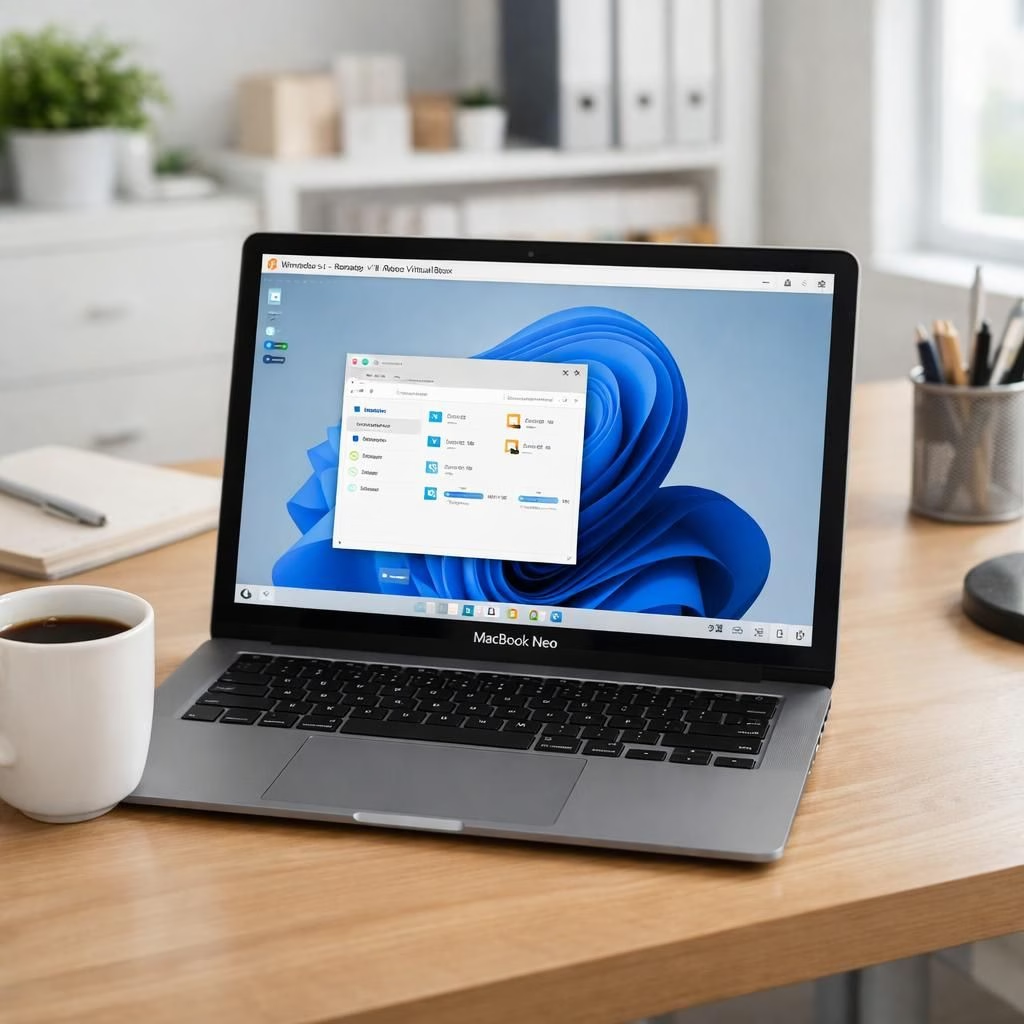
In 2026, Parallels Desktop on Tag B is getting serious about Windows compatibility, with the engineering team confirming basic usability and stable installs in early tests. The roadmap promises full validation and clearer guidance if needed. The vibe is practical, not pompous: if you only dip into Windows for light tasks—a legacy business tool, a Windows-only utility, or a familiar spreadsheet macro—the promise looks reasonable. The catch isn’t the CPU; the A18 Pro chip is ARM-based, like Apple’s M-series, so it plays nice with the virtualization stack. The real constraint is memory. Tag B ships with 8GB of RAM (and Apple won’t upgrade), and Windows 11 VM demands a minimum of 4GB to function. That leaves only 4GB for macOS and apps, which shadows most heavier multitasking scenes. Still, the tone from Parallels is glass-half-full: the setup can work well for light use if you temper expectations and keep workloads modest.
Parallels Desktop and MacBook Neo: practical use cases
People who fit the light Windows profile will likely find this pairing surprisingly usable on the Tag B. Think of it as a compatibility layer that lets a legacy tool or a Windows-only utility run inside a familiar Mac environment. Because RAM is the limit, it’s best to treat Windows as a temporary helper rather than a full-time guest. You’ll save time by keeping the Windows footprint small, using simple paste-and-run tasks, and avoiding resource-hogging apps that demand streaming video or heavy 3D work. The ARM design means the virtualization stack stays efficient, but you’ll still feel the memory cap during peak moments when macOS or other apps spike usage. If your day mostly revolves around browsing, document editing, and a handful of Windows tasks, this approach stays practical and quiet, a gentle nudge toward cross-platform productivity.
MacBook Neo RAM limits and Windows VM expectations with Parallels Desktop
Beyond the scorecard, the numbers tell the real story. The MacBook Neo’s 8GB RAM is fixed; you can’t upgrade it post-purchase. Windows 11 wants at least 4GB just to boot and run a minimal session, which means macOS and your apps must share the remaining memory. That’s workable for a few light tabs and one Windows window open at a time, but you’ll want to stay away from CPU- or GPU-heavy Windows programs. Apple’s upgrade path is at the ready for users who crave more headroom: a 16GB MacBook Air with an M5 chip starts at a higher price, but it provides breathing room without compromise. If you’re budget-conscious, refurbished M4 MacBook Air models often come with 16GB RAM and can feel like a smart middle ground. The takeaway: device choice should match your workload, and virtualization fits best when Windows tasks stay lean and well-scoped.
To get the most out of this reality, try practical setup steps. First, allocate memory to Windows sparingly; 4GB is the practical minimum if you want macOS to breathe. Avoid running multiple heavy apps inside the VM at once. Disable high-end animations in Windows and keep background tasks to a minimum. Use VM snapshots sparingly; they help you recover from mischief quickly but use a little memory. Enable Performance mode if your Tag B supports it in the Parallels settings; that setting can help stabilize the experience for light to moderate Windows tasks. Consider using Windows tools that are less demanding and avoid AAA games or GPU-accelerated software. For workers who need more autonomy, there are options outside the laptop path, such as upgrading to a MacBook Air with more RAM or considering refurbished devices that come with more memory pre-installed. The key is to map your use case to a suitable setup and keep expectations aligned with the hardware reality. The good news is that you can still enjoy cross-platform workflows with a modest, thoughtful configuration.
In closing, the practical takeaway is clear: your workflow, not the buzz, should drive the choice. If you want a light Windows helper that respects RAM boundaries, this pairing can serve well. If you crave a more robust Windows desktop experience, you’ll likely want more RAM and headroom, or a different hardware path altogether. Your experience may vary with software updates, microcode tweaks, and the evolving ARM virtualization stack, but the spirit remains: you can keep your Mac for everyday work while still reaching into Windows when needed. Share your real-world experiences below and let’s compare notes on what works, what doesn’t, and what to try next.
Original article: Parallels’ updated knowledge base article on MacBook Neo compatibility. Thank you to Parallels for the original material that inspired this post: https://kb.parallels.com/
Would you please share your thoughts in the comments below?
External references
- Apple MacBook Air — official product page
- Parallels Desktop for Mac — official product page
- MacRumors coverage on MacBook Neo Windows VM developments