

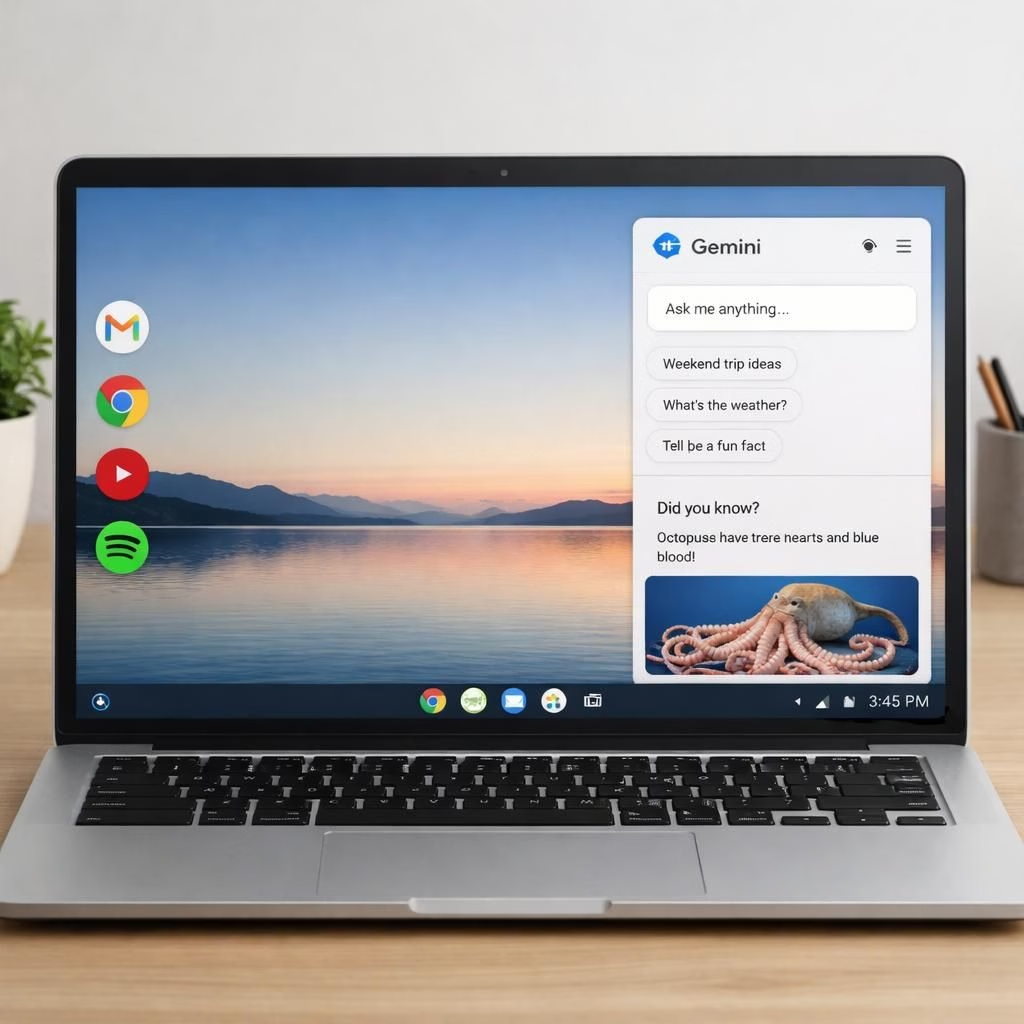
For over a decade, ChromeOS offered a minimalist desktop, but Googlebook brings a true workspace, using Gemini widgets. This shift bridges mobile app ecosystems with desktop workflows and changes how we interact with our laptops, turning routine tasks into a calmer, more organized experience.
Googlebook on ChromeOS: A Gemini-powered desktop renaissance
From the start, ChromeOS has earned praise for its clean cadence. The new Googlebook refuses to pretend that simplicity is the only good in life. It adds practical structure without shouting for attention. With Googlebook, you get a desktop where you can right-click to create folders, drag native Android apps onto the screen, and arrange tools as if you were building a tiny command center. The Gemini engine powers the widgets, making information flow visible without overwhelming the space. This is not a gimmick; it is a thoughtful step toward a more capable, adaptable workspace that still respects the Chromebook ethos.
From the start, ChromeOS has earned praise for its clean cadence. The new Googlebook refuses to pretend that simplicity is the only good in life. It adds practical structure without shouting for attention. With Googlebook, you get a desktop where you can right-click to create folders, drag native Android apps onto the screen, and arrange tools as if you were building a tiny command center. The Gemini engine powers the widgets, making information flow visible without overwhelming the space. This is not a gimmick; it is a thoughtful step toward a more capable, adaptable workspace that still respects the Chromebook ethos.
Right-click folders resemble familiar file-management patterns, but their effects feel modern and tactile on a ChromeOS device. Dragging Android apps to the desktop creates shortcuts that behave like native desktop apps, not just fragments of a mobile screen. The result is a usable blend: the simplicity of a wallpaper plus a productive layer you can customize with a few clicks. Gemini widgets sit at the heart of this experience, offering at-a-glance dashboards that stay up to date and relevant. Gmail data can feed a calendar, a travel plan can anchor a widget, and weather data can update a sport-friendly forecast. The desktop becomes a practical workspace rather than a decorative surface, and Gemini makes the feedback instant.
It is worth noting that this is still the ChromeOS you know and trust: fast, secure, and predictable. You can keep the minimalist vibe if you want, but you can also lean into a more information-rich surface when needed. The Create My Widget feature rises to the occasion with Gemini handling the data plumbing. You decide what you need on your desktop, and Gemini arranges it into a live, readable panel. The result is a personal dashboard that reacts to your day and adapts to your preferences. The moment you realize you can pull in Gmail threads, commute times, and the latest weather into one glance, you start rearranging your workflow around this new workspace.
Why Gemini widgets matter for Googlebook and ChromeOS users
The Create My Widget idea evolves beyond a grid of static tiles. Gemini can tap Gmail, calendars, maps, and weather to assemble live blocks that update across the day. A travel itinerary countdown can sit next to a briefing on a product launch, while a weather widget keeps an eye on conditions for an outdoor meeting. The widgets are not just pretty; they are practical, intelligent, and highly responsive. They understand context and surface the right data when you need it. The result is a desktop that reduces search time and increases confidence in your day-to-day decisions. Gemini acts as a quiet, capable assistant that you can customize, rather than a heavy AI sidecar that interrupts flow.
In practice, this approach matters for people who juggle multiple apps on ChromeOS. Gmail and calendar integrations provide continuity, while Android apps connect mobility with desktop work. The Gemini engine keeps the energy low and the information high, preventing clutter from creeping in. You can stage a compact dashboard for focused work or expand the panel as your tasks multiply. The world of widgets becomes a small, personal data studio, with Gemini delivering fresh data without demanding attention or power.
Beyond the gimmick of new widgets, the broader design intent shows in how the desktop responds to routine work. It respects the desire for minimalism while offering a robust layer for users who want more. ChromeOS remains friendly to new users and powerful for seasoned ones. Gemini widgets do not force a new habit; they extend existing ones with a new kind of clarity and speed. The desktop becomes something you can trust to stay out of the way or to stand up and help you through a busy day.
In short, the Gemini-powered widgets and the Create My Widget feature form a practical bridge between the mobile world and desktop life. The desktop space becomes a thoughtful command center rather than a plain stage for icons. If you prefer a calm environment, you can maintain minimalism. If you want quick access to Gmail contents, travel data, and weather, Gemini fills in the gaps with tasteful, data-driven panels. It is not a revolution in style alone; it is a maturation of ChromeOS into a complete productivity platform that respects your workflow.
For many readers, this shift unlocks new ways to work. A traveler can follow a Gmail-based itinerary countdown, a golf trip can be tracked with a tailored weather readout, and a planning session can surface the right documents at the right time. A student can pin study reminders and notes beside a live timetable. A pro can assemble a compact command center for daily tasks, with all essential data available at a glance. Gemini-powered widgets make all of this feel natural, almost expected, and reliably helpful rather than flashy.
What this means for daily laptop life is simple: you decide your level of depth. You can keep the desk clean and serene, or you can deploy a data-rich workspace that keeps you in motion. Dragging Android apps to the desktop becomes second nature, right-clicking to create folders feels intuitive, and the Gemini widgets provide context when you need it. The result is a more mature, more usable Googlebook on ChromeOS, one that respects your time and makes your day smoother rather than adding cognitive load.
Practical setup steps for Googlebook on ChromeOS
- Open Settings and enable Gemini Create My Widget, then connect sources you trust for live data.
- Right-click the desktop to create folders and organize your apps; drag native Android shortcuts onto the space to form a hybrid workspace.
- Add key widgets such as Gmail-based calendars, weather, and a travel countdown to your dashboard for quick glances.
- Customize the layout: keep a calm, minimalist feel or expand the panel with more panels as your tasks grow.
- Save presets and practice quick reconfigurations to keep your workflow flexible without clutter.
Frequently asked questions
- What is Googlebook? It is the Gemini-powered desktop experience on ChromeOS that blends app icons, drag-and-drop shortcuts, and live widgets into a single workspace.
- How do Gemini widgets work? Widgets pull data from Gmail, calendars, maps, and weather to provide up-to-date blocks you can resize and reposition on your desktop.
- Can I keep a minimalist desktop? Yes. You can preserve a calm layout and add widgets only as you need them for quick access.
- Will this affect performance? In practice, the system remains fast and secure; widgets run lightweight updates in the background without bogging down memory.
Conclusion
Gemini-powered widgets and the Create My Widget feature give ChromeOS a practical, mature productivity layer. If you prefer a calm, distraction-free setup, you can keep the desk clean; if you want rapid access to Gmail, travel data, and weather, Gemini fills the gaps with tasteful, data-driven panels. It isn’t a revolution in design so much as a meaningful evolution of ChromeOS into a robust, user-focused platform that respects your day.