

WindowsUpdate used to crash workflows, and UserControl over when updates land felt like a mythical creature. As 2026 opens, Microsoft is rolling out updates powered by real user feedback, designed to be kinder to your day while keeping your PC secure by design. The aim is simple: fewer surprises, more sense, and a vibe check that you actually control when your machine reboots. If you’ve ever interrupted a video call for a forced update, you’ll appreciate the intent behind these changes.
WindowsUpdate and UserControl: A calmer update era
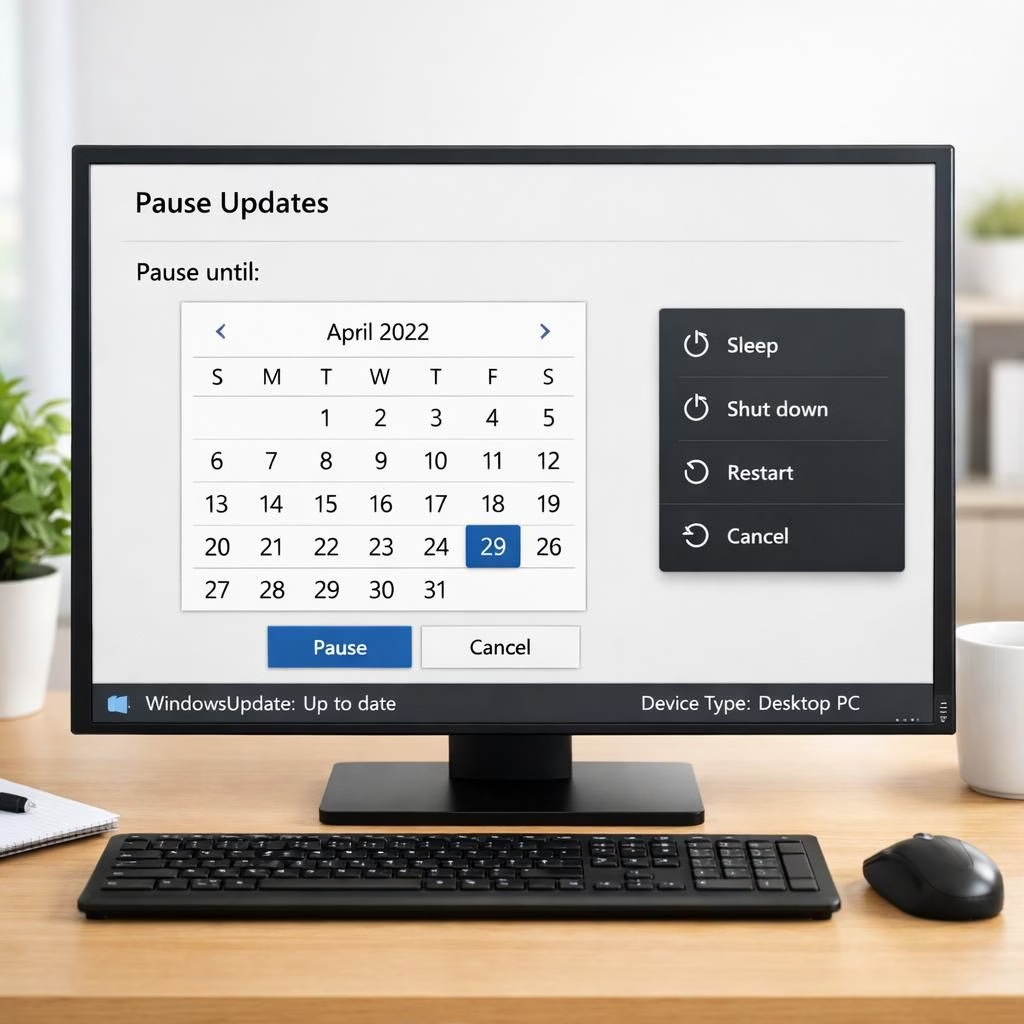
One of the big moves is a 35-day pause option, implemented with a friendly flyout calendar. You can pick a date, extend it later, or pinch-hit your own deadline as life demands. It’s not a forever ban on updates; it’s a thoughtful window that lets you decide when to sit through the install. This change reinforces UserControl by giving you a predictable window to plan maintenance. Note: WindowsUpdate remains a core part of the system’s security cadence.
The out-of-box experience (OOBE) now includes an option to skip updates, so you can land on the desktop quickly and decide the right moment to install later. It’s not about avoiding security; it’s about choosing the most convenient moment to apply updates—especially helpful for managed devices or environments where access to the Update window can derail a workflow. The idea is to give you control without adding friction to routine setup tasks or critical tasks that rely on a stable boot sequence. The broader intent is to empower UserControl across managed devices.
WindowsUpdate and UserControl: A monthly rhythm for drivers and devices
The Power menu is getting a friendlier layout: standard power options sit apart from update actions. You can now choose Restart or Shut down without automatically triggering an update, while the usual Update and restart and Update and shut down options remain available when updates are ready to install. This separation is exactly the kind of small UX improvement that prevents unexpected interruptions during a critical moment—like the moment you’ve finally saved your work after a long stretch of coding or design work. WindowsUpdate enthusiasts will notice the cadence more clearly in daily use.
Label clarity is getting a much-needed boost. Updates will clearly indicate the device type in the update title, such as display, audio, or battery, so you know what you’re installing. This helps reduce the “is this driver for my monitor or my webcam?” moments that can make updates feel opaque. In addition, drivers and other updates are being consolidated into the monthly cycle, which means fewer reboots overall and a more predictable cadence for maintenance tasks. The intent is to minimize disruption while preserving security and performance momentum.
Background activity remains the norm: updates are downloaded quietly in the background and then installed in a coordinated next restart. The installation and restart will align with the next Windows quality update or any other update you manually approve. If you’d rather acquire all or specific updates earlier, you can initiate download, install, restart (if applicable) for available updates. The default behavior is designed to reduce those “restart now” moments that interrupt focused work. WindowsUpdate remains a steady companion in most daily tasks.
Microsoft is starting with Windows Insiders in the Dev and Experimental channels to test and refine these changes before a broader release. The idea is to gather diverse feedback early, making it easier to iterate on what actually matters to real people across different device types and usage patterns. It’s a steady, customer-focused approach rather than a big bang rollout, which is a welcome shift for many IT teams and everyday users alike.
In the broader context of security and stability, these updates still emphasize keeping devices secure by design and by default. The emphasis on user control does not mean a lax approach to protection; instead, it reflects a practical balance between timely security fixes and predictable user workflows. By consolidating update types into a single monthly restart, Windows aims to reduce the cognitive load of multiple reboots and the risk of interrupting ongoing work. It’s a thoughtful tweak rather than a radical upheaval, and that’s a win for productivity in 2026.
For enthusiasts who like to peek behind the curtain, the changes also signal a broader intent: clear communication about what’s being installed and why. The updates are now labeled with device type, and drivers are given the proper context so you can decide when they’re appropriate for your environment. This combination of clarity and control helps you plan maintenance windows around actual work, gaming, or creative sessions rather than across vague, arbitrary moments chosen by a software wizard with a monocle.
Finally, this is not just about moving parts around; it’s about a better daily experience. If you’re a Windows user who’s ever felt blindsided by a sudden reboot that costs you a chunk of time, these changes are designed to reduce that pain. The cadence is the theme: download in the background, pause when needed, and install at a coordinated time that respects your workflow. It’s progress with a smile, a dash of humor, and a lot more predictability in the tempo of Windows maintenance.
Original article attribution: This article draws from Microsoft’s published update notes and user feedback reports. A heartfelt thank you to the original source material for guiding this rewrite and providing the essential details about the Windows Update improvements.
What do you think about the new WindowsUpdate and UserControl approach? Do you feel more in control, or do you still prefer a hands-off update cadence? Share your thoughts below and join the conversation. If you found this helpful, consider sharing it with friends or teammates who might appreciate a calmer reboot experience.
WindowsUpdate: Practical steps for using the new controls
- Open Windows Update settings to view the new pause and OOBE options.
- Use the 35-day calendar to pause updates and plan a maintenance window.
- Review the update list before enabling a coordinated restart to minimize downtime.
FAQ
- How can I pause updates, and how long does it last?
- You can pause updates for up to 35 days using a flyout calendar, with extensions available in increments.
- Will updates still install securely if I delay them?
- Yes. Updates download in the background and install at a coordinated restart aligned with Windows quality updates.
- Can I skip updates during OOBE?
- Yes. The OOBE flow includes an option to skip updates and complete setup, allowing you to decide when to install later.
- Which devices are affected first?
- Microsoft is rolling this out to Windows Insiders in Dev and Experimental channels first, then broadening to all users.
Notes: For further details, see the external sources listed in the References section below.
Conclusion: The updates aim to reduce disruption while keeping devices secure, combining background downloads with coordinated restarts that respect your workflow. If you’ve ever faced a last-minute reboot, this approach should feel more predictable and productive in 2026.
References
- Original source: Windows Update improvements (Bleeping Computer)
- Microsoft Learn: Pause updates in Windows 11
- Windows Update support