

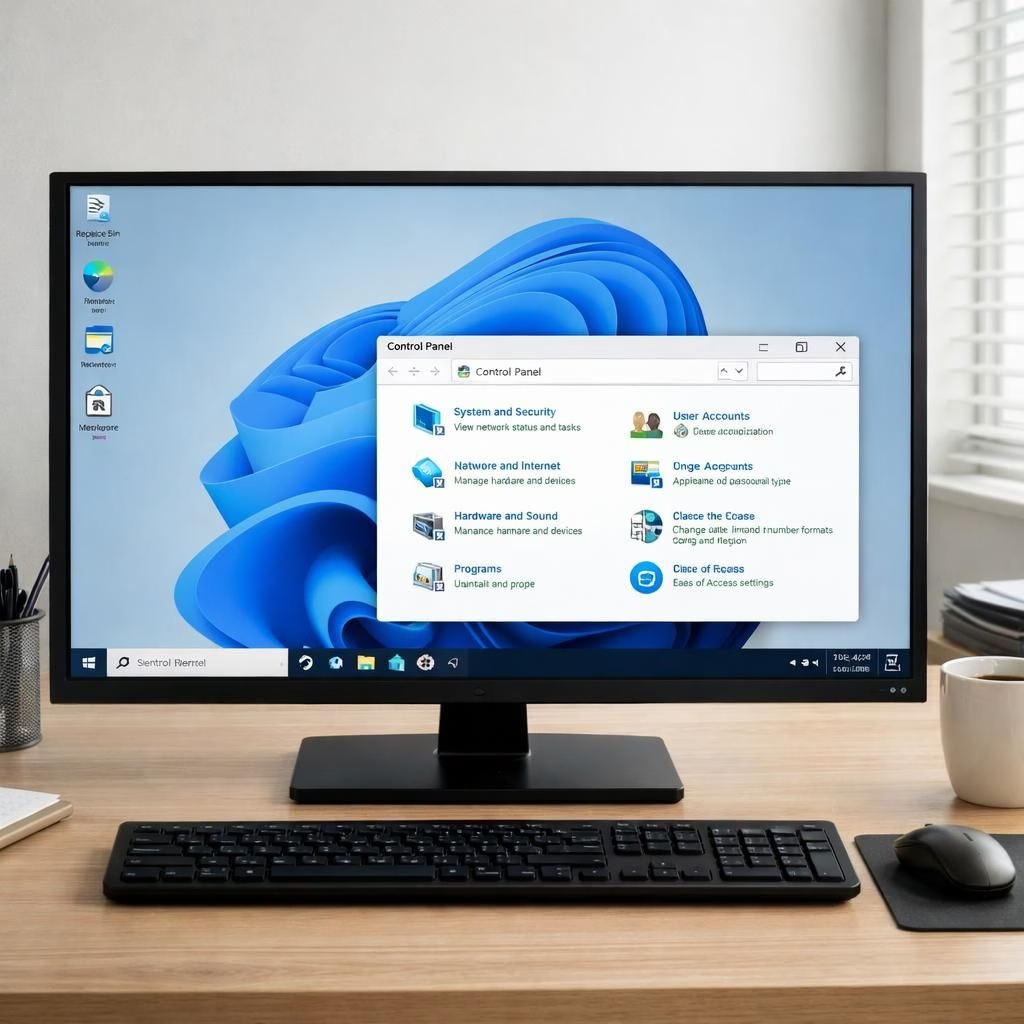
Windows 11 promised a fresh start, but change is messy where legacy sits. In 2026, designers push polish across the OS, balancing sleek surfaces with the stubborn hum of familiar controls. The big story isn’t a single feature drop; it’s a quiet commitment to consistency. The old Control Panel keeps reminding us that history has great posture and poor timing. Yes, these two run parallel tracks, and the joke is that one is modern polish while the other is patient nostalgia.
Windows 11 Gets a Polished, Playful Walkthrough
When developers talk about polish, they mean small, tangible wins: faster Start menus, more reliable web apps, and a settings surface that makes you feel like you found a well-organized toolbox. In practice, the update brings subtle performance bumps for Windows 11, clearer taskbars, and a more predictable Start experience. The result is a happier first five minutes of use and fewer detours when you explore productivity features. You will notice fluid transitions, consistent iconography, and a design that rewards memory rather than guesswork. The irony remains: the Control Panel still pops up when you least expect it, reminding us that history has its timing and that users deserve straightforward access when they need it.
Why Control Panel Keeps Popping Up in 2026
The stubborn sibling, the Control Panel, still sits in the wings because not every setting has a clean home in the new UI. Some advanced options lie in legacy paths, or in about sections that people don’t want to memorize anew. The result is a design compromise that many users tolerate with a smile: a modern interface sits beside the old Control Panel, offering depth for power users. The team argues that a total purge would be disruptive; the wiser move is to provide a graceful migration path, acknowledging that some experts prefer direct access to classic controls instead of chasing through dozens of preferences.
From a usability perspective, the approach blends progressive enhancement with pragmatic fallbacks. People who like the new settings experience can opt into streamlined layouts, while professionals who need granular tuning still find a path to those options without chasing after dozens of preferences. The Start menu, search, and web app integration gain stability that reduces frustration, and the design spruce-up helps each screen feel like part of the same family. It is not activism; it is housekeeping, courtesy of careful product management, UX research, and a culture that values both speed and accuracy. The balance matters because users vote with their time, and a polished Windows 11 experience earns them not merely a brief hello but long-term trust. Meanwhile, the old Control Panel remains a reminder that some legacies deserve a respectful encore rather than a ruthless deletion.
Looking Ahead with Windows 11: Privacy, Performance, and People
In 2026, the focus shifts from single features to a healthier rhythm of updates for Windows 11. Teams chase faster boot times, smaller updates, and clearer error messages. They test with real users to catch confusing paths before they ship. The aim is not to shock users but to earn trust through reliability. Privacy remains a guiding principle, with transparency about what data is collected and how it helps polish the experience. Performance targets include smoother animations and reduced memory churn during long sessions. The human factor matters: clear help articles, friendly error prompts, and the willingness to patch quickly when a quirk surfaces. This is how a mature platform earns loyalty without leaning on flashy memes or aggressive marketing. Even as the Windows 11 journey continues, teams stay focused on small, reliable wins that compound over time.
Note: The original reporting that inspired this piece comes from The Verge, with ongoing context about Windows 11 and the Control Panel strategy.
If you enjoyed this, please share your thoughts in the comments below. Your take helps shape future coverage.
Practical takeaways for readers
- Use Start > Settings to explore the refreshed surfaces, but know that Control Panel paths remain for advanced tweaks.
- When you need precise control, try the classic paths first and then move to the Settings surface for broader changes.
- Keep an eye on the Start menu and search optimizations; they reduce time spent hunting for options and increase productivity.
FAQ
- Q: Will the Control Panel disappear in Windows 11 soon?
A: Microsoft has signaled a migration approach, not an abrupt purge. Some advanced settings remain accessible via legacy paths while others are moved to Settings. - Q: How should I approach tense updates to avoid losing my preferences?
A: Back up important configurations, explore Settings first, and use the familiar Control Panel only when necessary. - Q: Do these changes affect performance on older hardware?
A: The goal is smoother experience with smaller updates, but legacy paths can still be used for compatibility on older devices.
References
- Original article: The Verge – Windows 11 and Control Panel discussion
- External: Windows Blog on Windows 11 design and polish concepts: Windows Blog
- External: Usability insights on consistency and polish from NN/g: NN/g Usability Heuristics