

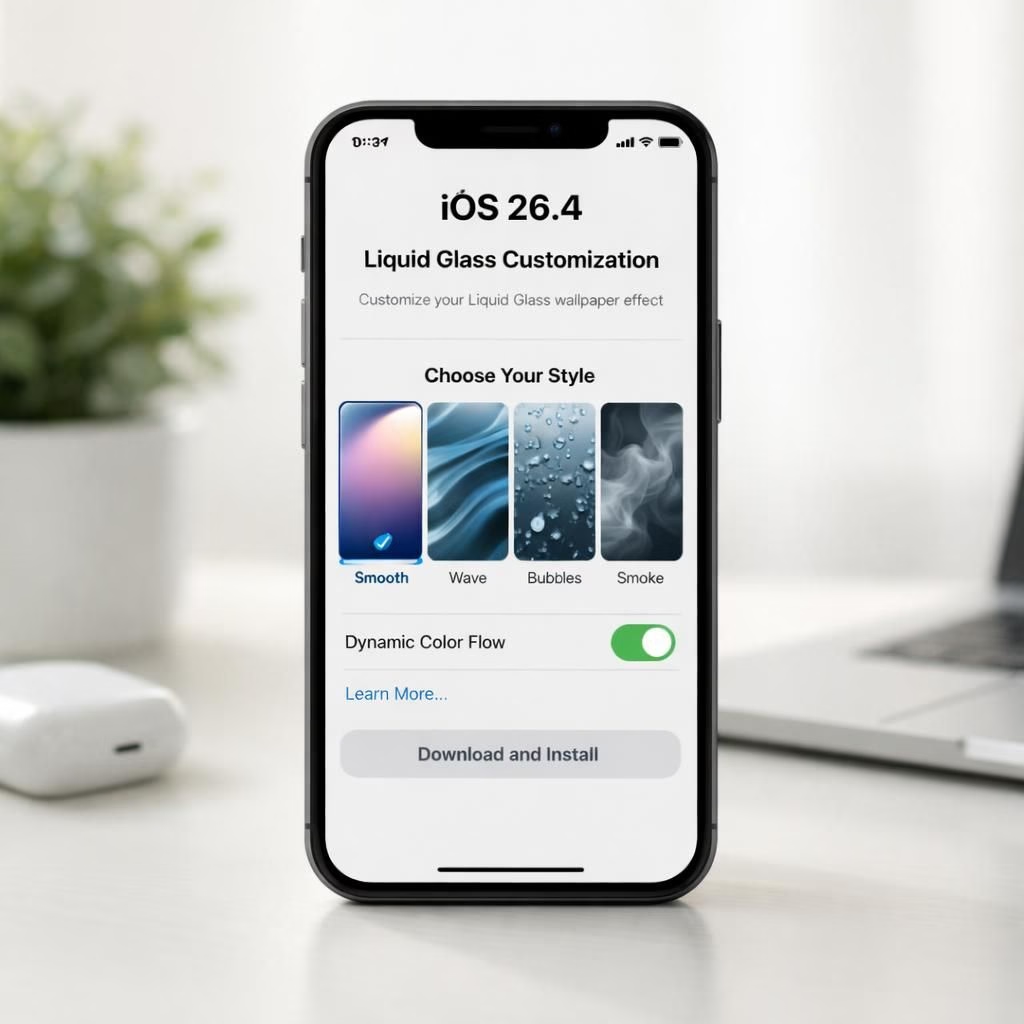
Welcome to a brisk, friendly tour through iOS 26.4, where Liquid Glass updates meet a dash of security, and where Apple occasionally pretends the glass is held together with smiles. Yes, iOS 26.4 arrives with two Liquid Glass customization updates that let you tune transparency and blur to your liking. And yes, security gets into the mix too, because a great interface is useless if your data isn’t protected. In this post, we break down what changes actually feel useful, what feels like cosmetic theater, and how you can get the most out of the update without turning your iPhone into a test chamber for your eye muscles.
iOS 26.4: Liquid Glass upgrades and security tweaks in one tidy bundle
The Liquid Glass updates come in two flavors. The first toggles how much glassy blur the OS uses when apps stack on the home screen; the second adjusts the color and contrast so text reads clearly over photos or wallpapers. It’s subtle work, but the effect is noticeable. The interface gains a calmer, more legible vibe without sacrificing depth. If you hate when your background distracts from the app you’re using, you can dial it in to taste. If you love a crisp, legible palette, you can lean into it even more. Either way, the feature set suggests Apple listened to user feedback about readability and aesthetics, and then shipped a few knobs to tweak the balance.
iOS 26.4 security: Liquid Glass refinements for a safer, smoother experience
Security still matters, and iOS 26.4 doesn’t pretend otherwise. The updates include more consistent handling of sensitive UI surfaces and improved prompts when apps request permissions. The result is less guesswork about what you’re sharing or granting, and a little more courage in privacy decisions. The emphasis remains on a polished, non-intrusive experience, not on whacking you with security notices every five minutes. In practice, you get fewer interruptions, plus a clearer sense of what data travels where behind the scenes.
Beyond the Liquid Glass tweaks, various outlets highlight other notable moments. Mashable singles out three features we’re excited about, including a more efficient UI render, a cleaner notification shade, and an upgrade to background task handling. MacRumors notes improvements to keyboard accuracy, a welcome fix that makes typing feel more precise during long chats. 9to5Mac flags a security feature that turns on automatically for iPhones in this cycle. Taken together, the signal is that iOS 26.4 focuses on a smoother, safer, glassy experience rather than flashy gimmicks. If you enjoy a calm OS with a dependable privacy posture, you’ll likely approve.
From a user perspective, the two Liquid Glass updates are the centerpiece, but they ride on a broader wave of polish. The UI feels more coherent when you switch between apps, and the glassy look now adapts more gracefully to your lighting environment. You can still brag about your wallpaper without fear of text readability vanishing behind color or blur. The security emphasis means you’ll see clearer permission prompts and a more predictable data-sharing story, which matters when you’re handling sensitive information or signing into work accounts. The combination of these effects adds up to a platform that feels both friendly and responsible, a rare mix in the world of annual updates.
For those curious about the broader ecosystem, reports about macOS 26.4 hint at four additional features coming soon, reinforcing Apple’s strategy of cross-platform consistency. The idea is not to flood users with complexity but to extend the same design language—subtle, reliable improvements that quietly improve daily tasks. If you’re a power user who juggles several devices, you’ll appreciate the alignment between iOS 26.4 and the rest of the family. It makes continuity between iPhone and Mac feel less like a marketing slogan and more like a practical benefit you can feel as you type, drag, and tap your way through the workday.
For keyboard enthusiasts, MacRumors reports that a keyboard accuracy bug has been addressed in this cycle. Typing should feel a touch more precise, which is a meaningful win when you’re chasing fast emails or long messages. And if you’re a fan of clean, distraction-free interfaces, you’ll appreciate the reduced noise around permission prompts and background activity. Mashable’s highlighted trio of features points to a future where iOS remains expressive but less invasive—a balance that many users crave in 2026 and beyond.
In short, iOS 26.4 offers a thoughtful blend of visual refinement and practical security safeguards. The two Liquid Glass customization options empower you to tailor readability and aesthetics to your environment, while the security-oriented tweaks help you feel more confident in how the system handles sensitive data. The small but meaningful changes add up to a more pleasant daily experience, with less friction and more clarity as you navigate apps, messages, and work tasks.
As the update lands on more devices, the question isn’t just what’s new, but how it feels to live with it. Do you notice the glassy layers more legible? Do permission prompts feel less nagging? Does the keyboard bug fix improve your typing speed and accuracy? These are the kinds of everyday improvements that define a successful update: the ones you notice without hunting for them. If you’re already experimenting with the Liquid Glass options, you might find new favorites after a week of use. If you’re still undecided, give it a little time—Apple’s design language rewards patience and subtle tweaks more often than dramatic overhauls.
Finally, if you have thoughts, experiences, or surprising discoveries about iOS 26.4, we’d love to hear from you. Your feedback helps others decide how to use the new security settings and privacy prompts in their daily routines.
Original reporting and inspiration come from 9to5Mac, Mashable, MacRumors, and bgr.com, whose coverage shaped this guided overview. Thank you for the thoughtful reporting from these outlets that helped shape our take on iOS 26.4. Original article credit: iOS 26.4 offers two Liquid Glass customization updates.
If you enjoyed this overview and want more hands-on takes, feel free to share your thoughts in the comments. We’re eager to hear how iOS 26.4 and Liquid Glass are shaping your daily device experience.
Practical tuning: 3 quick steps to adjust Liquid Glass and privacy prompts
Start with the basics: head to Settings > Display & Brightness > Liquid Glass. Use the Blur slider to drop or boost the glass effect, then tweak Contrast for readability against your current wallpaper. Choose a level that keeps app content crisp without washing out the background.
Next, test in different lighting: dim rooms and bright outdoors can reveal how well text holds up against busy backgrounds. If you notice text blending in, nudge the contrast higher or switch to a simpler background.
Finally, review prompts: go to Settings > Privacy > App Permissions and look for patterns. If an app asks for data you don’t fully trust, use the new clarity around prompts to block or limit access. These small steps deliver steadier daily usability.
FAQ: iOS 26.4, Liquid Glass, and privacy questions
- Does iOS 26.4 really improve readability with Liquid Glass?
- Yes. The updates give you more control over blur and color so that foreground text stays legible over diverse wallpapers.
- Will the security prompts annoy me less?
- Prompts are designed to be clearer and less intrusive, letting you decide more confidently what to share.
- Is keyboard accuracy affected by this update?
- Yes—some users report more precise typing thanks to refined keyboard handling in this cycle.
- Can I roll back Liquid Glass settings if I don’t like them?
- Settings are adjustable. You can dial back the changes at any time without affecting other features.
Conclusion: a thoughtful, usable refinement
iOS 26.4 blends visual refinement with practical safeguards. The two Liquid Glass options offer a measured way to improve readability and ambience, while the privacy-focused tweaks reduce friction without sacrificing control. The result is an update that feels both friendly and capable, especially for users who value calm design and reliable security.
As you explore the update, notice how subtle adjustments can make a real difference in daily tasks. If you’re already experimenting with the settings, you might discover new favorites after a week. If you’re still deciding, give it time—the best refinements often show up after a few days of use.
Original reporting and inspiration come from 9to5Mac, Mashable, MacRumors, and bgr.com, whose coverage shaped this guided overview. Thank you for the thoughtful reporting from these outlets that helped shape our take on iOS 26.4.
References