

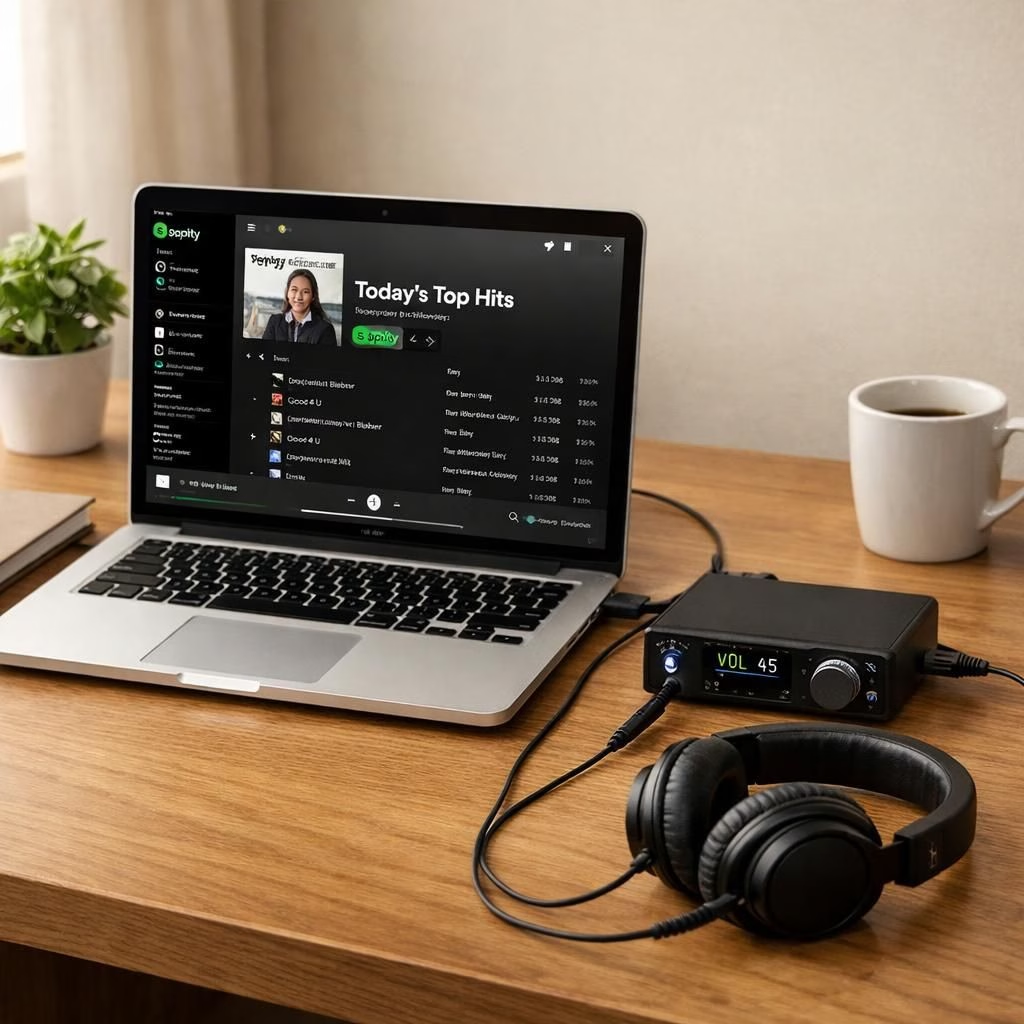
If you care about audio quality, Exclusive Mode and Spotify aren’t magic wands, but they are pretty solid tools when used correctly. In 2026, with modern DACs and wired headphones, Lossless settings paired with Exclusive Mode can help you hear tracks as the artist intended—minus the cat walking on the keyboard.
Exclusive Mode, Spotify, and Lossless: What It Means for Audio
Think of Exclusive Mode as a VIP pass for your audio pipeline. The DAC gets a cleaner data stream, the sample rate stays committed to the original track, and the system doesn’t re-encode the signal in the middle of a crucial guitar solo. When you combine Exclusive Mode with Spotify‘s Lossless streaming, you’re stacking the deck toward higher fidelity. Lossless means less compression and fewer artifacts, which your DAC and wired headphones will appreciate. The goal is clarity, not vanity; you want the artist’s intent, not the computer’s whimsy.
In practice, enabling Exclusive Mode means you’ll lose some OS-level sound cues—like notification pings or system alerts—while you’re listening. If you’re a multitasker, this feels like ad blocking for your ears: everything you want to hear becomes the only thing you hear. A well-chosen DAC, paired with good headphones and a stable USB or optical connection, makes a big difference. The tech side is straightforward, but the payoff is audible and satisfying: cleaner high frequencies, tighter bass, and more precise imaging, especially in complex passages. You might notice the differences more when playing tracks with wide dynamic ranges on Spotify.
How to Enable Exclusive Mode in Spotify for Lossless Sound
Getting there is easier than you might think. On Windows, open the sound settings, scroll down to Playback, and toggle Exclusive Mode to On under the Output section. Spotify’s playback could then stay in control of the device while it delivers the best possible stream. If you’re using macOS or Linux, the exact UI may differ, but the logic remains: give Spotify your DAC’s attention and let the file breathe in its native, lossless form. If you want to be extra strict about fidelity, enable Spotify’s Lossless streaming option and ensure your DAC supports high-resolution audio.
Once Exclusive Mode is on, test with a few tracks that feature wide dynamic ranges and demanding transients. Listen for the crispness of cymbals and the scale of the bass, and notice that the background hiss or digital artifacts have faded into the background where fidelity matters. It’s not just about louder or quieter; it’s about a more faithful reproduction of the recorded performance. The goal in 2026 is to keep the signal intact through a clean chain: source, app, DAC, and headphones, with minimal interference and maximum fidelity.
Practical Tips for Getting the Most from Exclusive Mode and Lossless on Spotify
- Tip one: stick with wired headphones plus a real DAC if you can. Bluetooth, while convenient, can introduce compression or latency that undermines the gains from Exclusive Mode and Lossless.
- Tip two: ensure your DAC firmware and driver are up to date. Firmware updates often address compatibility and performance for modern streaming formats.
- Tip three: confirm that your Spotify plan includes Lossless streaming, and monitor your data plan if you’re on a limited connection.
- Tip four: manage expectations. Exclusive Mode reduces system-wide audio interference, but it won’t fix a broken recording or a poor-quality master.
- Tip five: re-enable system sounds when you’re not in a focused listening session or try a dry-run with a test track before a critical session.
From Theory to Daily Use: A Quick Setup Checklist
- Connect a DAC to your computer or laptop and test the signal chain with wired headphones.
- Open Spotify and navigate to Settings > Playback.
- Scroll to Exclusive Mode and switch it On.
- Enable Lossless streaming on Spotify if your plan allows it and if your DAC supports high-resolution audio.
- Play a track you know well and listen for the improvement in channel separation and micro-detail.
- If you hear distortion or clipping, double-check your output device selection and ensure your headphones or DAC aren’t drawing more power than they can safely handle.
The numbers and labels aren’t just jargon; they’re practical levers you can pull to improve how you hear your music. The more you learn to trust your DAC and your ears, the more detail you’ll notice—the breath of a guitarist, the air around a choir, the tension in a bass note—that you might have missed before. In 2026, with the right setup, your listening sessions can feel like a close-up live performance rather than a digital lull.
Original article: Thanks to the original material for the concept and guidance. Read the original article here: Original article. We’re grateful for the source content that sparked this rewrite and hope you enjoy the updated take.
We’d love to hear your thoughts. Share your experiences with Exclusive Mode, Spotify, and Lossless in the comments below.
FAQ
- What is Exclusive Mode?
- Exclusive Mode is when an app takes control of the audio device, reducing OS mixing and keeping the signal more faithful to the original recording.
- Do I need Lossless to hear improvements?
- Not strictly, but Lossless streaming helps preserve detail and reduce artifacts when paired with a capable DAC. Spotify users may notice the benefit more with a stable pipeline.
- Will Exclusive Mode disable system sounds?
- Yes. You may lose OS notifications while listening, but you can re-enable sounds after playback.
- Is Exclusive Mode available on macOS?
- Support depends on the app and the OS. Some players on macOS expose exclusive-like modes, while others don’t.
- How do I verify my DAC supports high-resolution audio?
- Check the manufacturer’s specs and test with high-resolution tracks to confirm capabilities.
References
- Engadget: Spotify rolls out bit-perfect playback in Windows app
- SoundGuys: What is Exclusive Mode in Windows Audio
- What Hi-Fi?: What is lossless audio?