

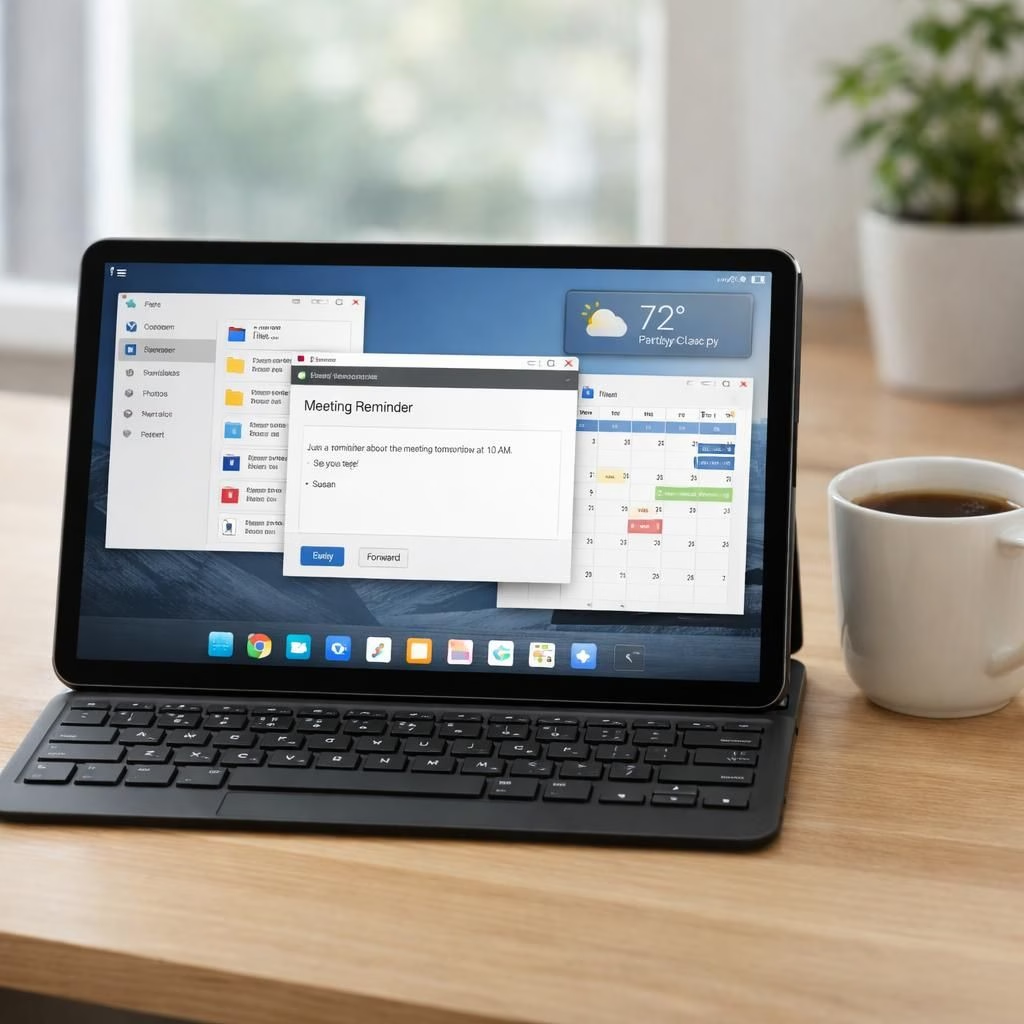
Android Desktop has quietly become the productivity sidekick I never asked for, and Multitasking is the friendly nudge that keeps my tablet from turning into a tiny kiosk. In 2026, desktop windowing on Android feels less sci-fi and more like a sensible upgrade, a gentle reminder that big screens can act like a real PC without sacrificing battery life or whimsy. The feature set blends familiar Android apps with new windowing tricks, creating a hybrid workspace that fits on a 10-inch canvas and travels with you on a train or couch cushion.
Android Desktop and Multitasking: A real-world reboot for tablets
With Android Desktop, you can resize windows, snap apps into handy layouts, and drag content between apps as if your tablet were a tiny desktop PC. Multitasking becomes a habit, not a hurdle, because the system surfaces window controls, a shared clipboard, and on‑screen hints that feel surprisingly human. The approach leans into what tablets do well while borrowing some of the elegance of desktop OSs, and it does so without forcing you to relearn everything.
- Resizable windows let you carve real estate for docs, chats, and notes on the same screen.
- Drag content between apps with a touch or a keyboard shortcut, a hallmark of Multitasking done right.
- Docked taskbar and quick actions reduce the time spent hunting for apps, a tiny win for productivity on tablets.
- Seamless app compatibility means most of your favorite tools still behave, so Multitasking doesn’t feel like a jig saw puzzle.
Multitasking in 2026
Here are practical tips for squeezing more productivity from your setup while you enjoy true Multitasking in 2026. Start with a primary window for writing, a secondary for reference, and a third for chat or browser. Snap layouts help you create stable zones on the screen, while a floating video or note window can orbit your main task without stealing focus. A stylus or keyboard makes it even smoother, and you can assign specific apps to slots so that everyday tasks become muscle memory.
- Customize your edge gestures to switch apps quickly in Android Desktop, so Multitasking feels instant.
- Use keyboard shortcuts for the most common actions, like snap, minimize, and switch; it speeds things up for enthusiasts.
- Keep the home screen clean; a tidy layout reduces cognitive load while performing Multitasking across windows.
In practice, the experience varies by app; some apps are perfectly happy living in a window, others want full screen. The key is to experiment with layouts and to keep expectations in place. The result is a workflow that blends portability with an almost desktop-like focus, which is why this approach can be a genuine productivity upgrade for many tablet setups in 2026.
As you explore, tell me how Android Desktop and Multitasking affect your day-to-day tasks. Do you prefer a single large window or a mosaic of smaller panes? Have you discovered a favorite layout that makes long emails and research sessions easier? Share your experiences and setups, and let’s build a library of practical tricks together—your input matters.
Original article: Android Authority article. Thank you to Android Authority for the original reporting and for the inspiration.