

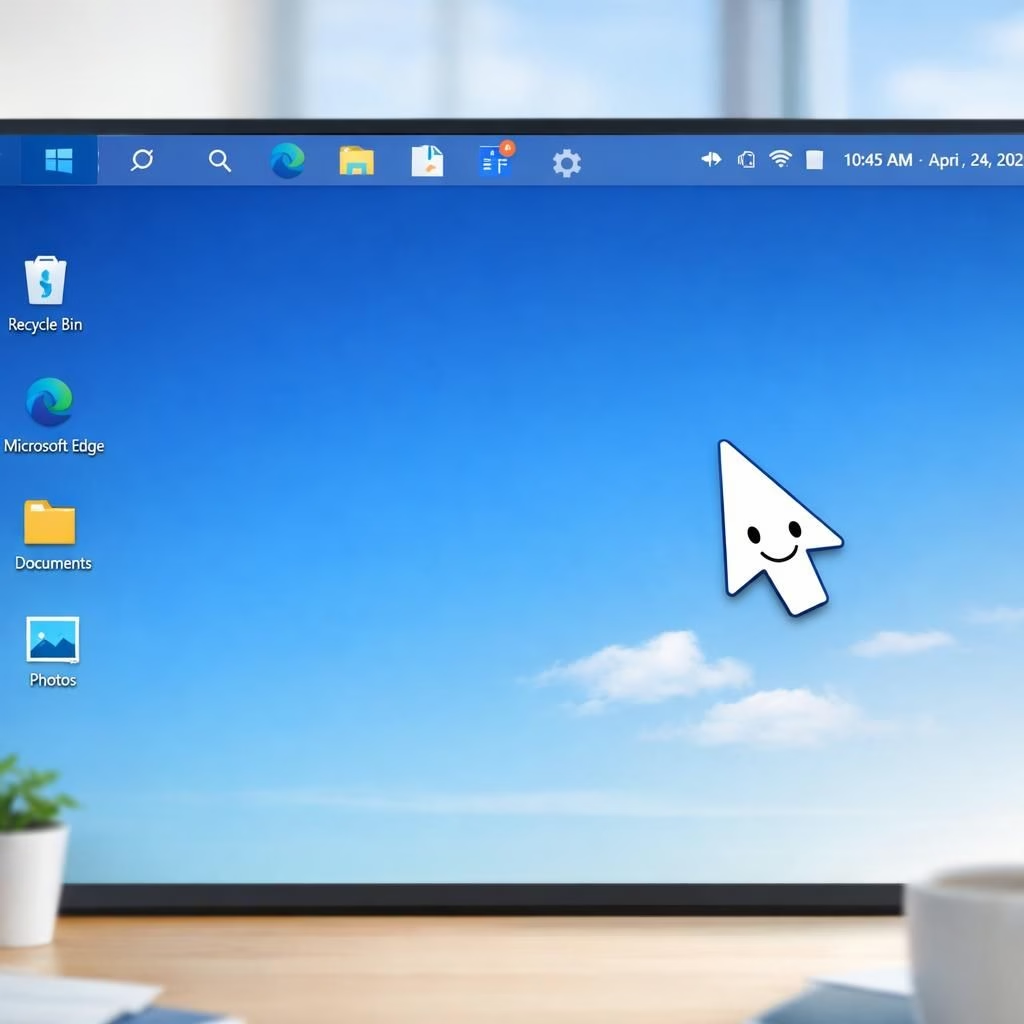
Windows11 users have waited for a movable Taskbar long enough to notice the rhythm of their wrists. The goal is simple: move the bar to where you work best and reduce mouse travel. This article explains what changed, what stayed the same, and how to use the feature in real life. We cite credible voices, including The Verge and the Windows Blog, to keep the tone balanced.
Windows11 Taskbar Makeover: Small Changes, Big Feel
The makeover is not a dramatic overhaul. It is a thoughtful reallocation of screen space. With the movable bar, you can place tools where they make sense. You can anchor icons for quick access or let the bar glide to the side on larger monitors.
Movement feels deliberate, not chaotic, because alignment cues guide you. The Verge highlighted how this feature aligns with modern multitasking. Our tests confirm it helps reduce unneeded clicks and cursor drift. The result is a familiar feel with fresh nuance that suits both power users and casual shoppers alike.
- Position options: bottom, left, right, or auto-hide.
- Icon spacing and scale for comfortable tapping.
- Lock mode to prevent accidental moves.
- Keyboard shortcuts to cycle through pinned apps.
Small changes, big feel emerge when the interface respects user intent. A movable Taskbar reduces friction. It scales across devices from a laptop to a 27-inch desktop. The approach stays pragmatic and consistent, focusing on usability. This is a practical step toward a calmer workspace. When you reframe a familiar element, you unlock new productivity rituals. For teams, that means fewer distractions during standups and more focus during coding sprints.
Why Windows11 and the Taskbar Matter for Daily Work
In the daily grind, the Taskbar becomes the control center. The OS treats it as a tool rather than a decoration. When you can slide the bar to a preferred edge, you reduce hand travel and speed up app switching.
For designers and developers, that translates into minutes saved per day. For managers and students, it means a steadier workflow and fewer breaks to rearrange windows. The balance between consistency and customization is the magic sauce here.
Yes, headlines teased that the plan could rival macOS Tahoe in swagger. The move is not about ego; it is about efficiency and predictability. A movable Taskbar won’t win every debate, but it does address a real need: less cursor wandering and more focus on the task. The Windows11 approach remains practical, with a hint of whimsy, while the Taskbar shows up as a reliable teammate rather than a cosmetic showpiece. In practice, the change feels like a quiet, friendly upgrade you barely notice until it helps you work better.
If you want to optimize further, here are practical steps. Open Settings, then Personalization, and Taskbar behaviors. Decide where the bar should live and how icons resize. Use keyboard toggles to switch between apps quickly. Consider multi-monitor setups and test edge placement with your most-used tools, like your browser, code editor, or notes app. The tips may feel small, but the cumulative impact is real. Windows11 benefits from a disciplined customization flow that respects your work style and yields predictable results day after day.
In the end, the movable Taskbar is more than a gimmick. It signals a mature design philosophy: make the interface helpful, not heroic. It invites power users to fine-tune while keeping the experience approachable for newcomers. If you enjoy tinkering, you will appreciate the subtle improvements. If you prefer a clean baseline, you still gain clarity and speed. The discussion around Windows11 and the Taskbar shows how small UX shifts can change daily routines for the better.
What do you think? Share your thoughts in the comments to join the conversation about Windows11 and the Taskbar, and tell us how you would arrange your own workspace to optimize your day.
Original coverage and inspiration: The Verge: Windows 11 is finally getting a movable Taskbar. Thank you to The Verge for the original material.
Practical steps to optimize your movable Taskbar
To tailor the experience, start with Settings > Personalization > Taskbar behaviors. Choose the edge, adjust icon scale, and decide whether you want labels or only icons.
Use Windows keyboard shortcuts to switch between apps quickly, and test multi-monitor setups to see how the edge placement feels with your most-used tools.
FAQ
- Is the movable Taskbar available on all Windows11 editions?
- Microsoft has rolled out the feature broadly, but availability can vary by build and edition. Check Windows Update for the latest preview or stable release.
- Will moving the Taskbar impact performance?
- Performance stays similar; the change mostly affects layout and cursor travel rather than core processing.
- Can I automate placement with keyboard only?
- Yes. Use shortcuts and accessibility features to switch edges and focus between apps without a mouse.
Conclusion
Small UX shifts like a movable Taskbar can quietly sharpen focus and reduce wasted motion. Windows11 keeps its familiar feel while offering a more flexible workspace. If you enjoy tweaking your setup, you’ll likely notice a smoother day, especially during long coding sessions or busy standups.