

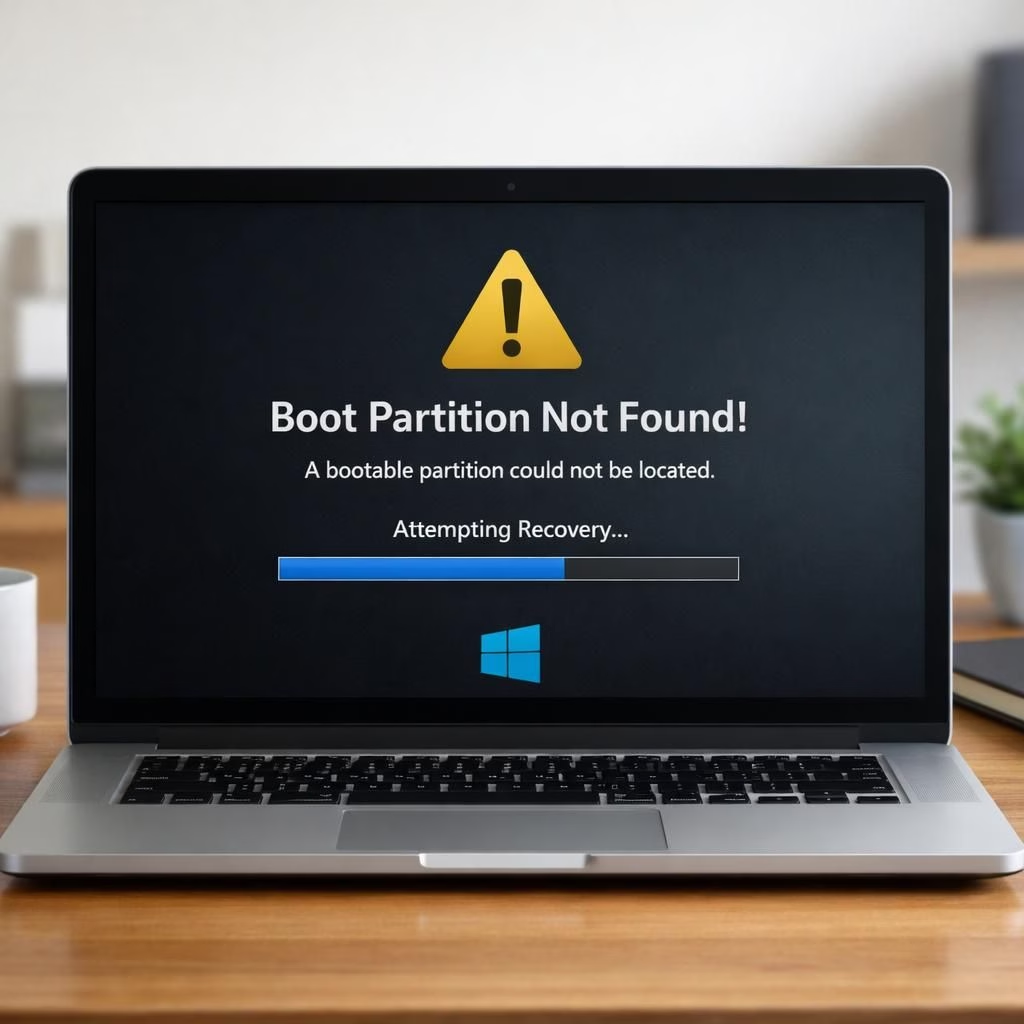
Life with a PC can feel like training a distracted puppy. Windows 11 should behave, and security updates should arrive on cue. Sometimes the May update slows things down by eyeing the boot partition, and space runs out fast. When the boot partition is full, Windows struggles to unpack patches. That is the core issue behind the May security update drama.
Windows 11 reality check: boot partition pressure
When the boot partition is tight, updates stall. The May cycle brings large payloads. If space is tight, Windows must delete or compress things. That leads to delays and a few frustrated reboots. The result is a small crisis when you needed a smooth patch process.
security updates and space management: a pragmatic guide
First, audit what sits on the boot partition. Old installers and cached update files tend to pile up. A clean-up helps. It reclaims space without risking the patch itself. Here are practical steps:
- Run Disk Cleanup. Choose System files and Windows Update Cleanup to reclaim space for security updates.
- Stop the Windows Update service. Delete SoftwareDistribution\\Download. Start the service again.
- Trim temporary files and caches from browsers and apps that linger on C:.
- Move or resize the pagefile if you have a second drive. It frees boot partition space.
- Disable hibernation temporarily. This deletes hiberfil.sys. Re-enable after updates finish.
- If you have a second drive, move large data away from C: to create space for the patch payload.
- For advanced users, shrink the C: partition slightly. Extend a non-system partition for the patch cache. Back up first and proceed with caution.
- After the update, run Disk Cleanup again to reclaim space used during the patch.
Pro tip: the update process can generate logs and temp files on the boot partition. Keep an eye on disk space management during updates to avoid a failed patch. If the boot partition fills regularly, consider a larger boot drive or a dedicated update partition.
Another approach is to monitor disk usage with built-in tools. Use PowerShell or disk space tools to identify big culprits. Decluttering helps reduce failed updates and keeps Windows 11 running smoothly. It also helps admins who manage fleets where disk space is precious. This matters for security updates that arrive on a schedule.
Common pitfalls include assuming Windows will compress before a patch. In practice, users forget to empty the Recycle Bin or to clear the Downloads folder. A few gigs can vanish into hidden caches. Regular checks are part of good disk space management.
Long-term planning matters. If you routinely install large updates or keep many test builds on the boot drive, a larger boot partition or an extra drive is wise. Consider a separate update drive for fleets or family PCs, with clear labeling and a simple backup path. This is where disk space management becomes a policy, not just a one-off fix.
security updates and space management for Windows 11
Keeping Windows 11 systems healthy means more than a one-time cleanup. Automation helps maintain a steady flow of security updates without surprises. Storage Sense can automate routine cleanups, while scheduled tasks keep the boot partition lean. Pair this with a basic backup routine so patches don’t risk your data during a patch cycle.
Bottom line: the boot partition space challenge is solvable. A mix of mindful disk space management and careful update hygiene helps. Windows 11 and security updates can flow smoothly again.
Have you faced boot partition space woes? Please share your tips in the comments.
Original reporting: Windows boot partition runs out of space for Microsoft’s May security update — The Register. Thank you to The Register for original coverage.
Frequently asked questions
- What is the boot partition, and why does it fill?
The boot partition holds the files Windows uses to boot and to apply updates. Large updates and cached installer files can accumulate, filling the space over time.
- How can I prepare my PC for large Windows updates?
Keep some free space on C:, run Disk Cleanup, enable Storage Sense, and consider moving data to another drive before the update window.
- Should I disable hibernation to speed up updates?
Disabling hibernation temporarily can help reclaim space, but re-enable it after updates finish to preserve power-saving features.