

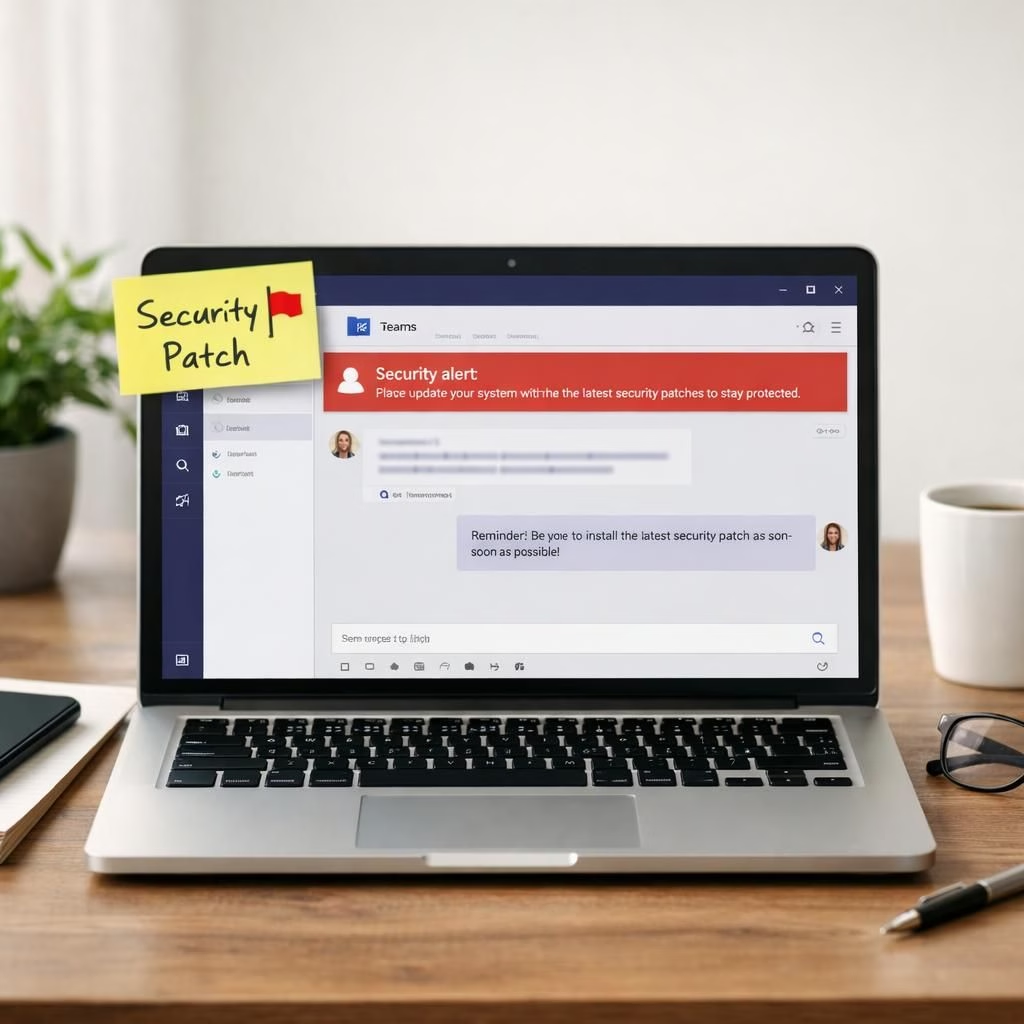
In 2026, security teams are tracking a very modern mischief: criminals who slip into your everyday collaboration tool and pretend to be IT helpdesk agents. The twist? They use Snow malware on corporate devices via Microsoft Teams.
The trend is real, and it’s inviting all the techno-jokes about remote support to the desk, but the risk is serious. If you think your help desk would never text you from inside Teams with urgent instructions, you’re not alone—but you’re not necessarily safe either. The core truth remains: social engineering plus legitimate software equals a tricky confluence that can bite your organization. And yes, Snow malware is being deployed in these schemes.
Here’s how the ruse typically unfolds. A sender uses a familiar-looking Teams chat to claim they are from IT or a trusted vendor. They press for a quick remote session, or they urge you to click a link that promises a patch or password reset. The message often insists on secrecy, or it plays on urgency: “Do this now or your access will be interrupted.” If you bite, you end up downloading a payload or giving up credentials, and a malware payload can slip into your network quietly. This is not a myth. It’s an evolving tactic that preys on workplace trust in bold, chatty messages.
What should you look for? First, uncharacteristic messages from internal-looking accounts in Teams. Second, a meeting invite that arrives with little context but asks for remote access. Third, a file or link that is framed as a security fix but comes from an odd source. And finally, a demand to bypass normal channels in favor of a quick Teams chat. In practice, these signals often appear together, hinting at a coordinated attempt to exploit the convenience of already-established workflows. Pay attention to any download or patch that arrives via chat, and stay skeptical about rapid-fire requests that skip established approval steps.
Microsoft Teams and Snow malware: Signals of a modern helpdesk ruse
Security teams spot these patterns: a Teams contact from an alleged IT agent, a request for credentials or remote access, and a patch download that looks legitimate but isn’t. The danger is real, and it’s easy to misread as legitimate work. Enlist your security controls and staff training to counter this tactic by slowing down and verifying every unusual prompt. This is why risk-based checks and careful verification matter more than ever in busy workdays.
Beyond basic awareness, you can harden the environment. Consider limiting external apps in Teams to those strictly necessary for business. Enforce conditional access policies that require device health checks and trusted networks before allowing remote support. Make sure Teams clients are kept up to date; enable Defender for Office 365 Safe Links and Safe Attachments. In practice, these controls disrupt impersonation attempts before they gain traction, and they give defenders a better chance to detect anomalies early. Remember: legitimate IT teams do not rush you into action; they guide you through a careful verification process.
Another pillar is user training paired with technical safeguards. Create a standard operating procedure for handling helpdesk requests that arrive via Teams. Train staff to verify identities through a known, separate channel—phone or the official helpdesk portal—before sharing credentials or granting access. Use multifactor authentication and device posture checks to ensure that a request is tied to a trusted session. With these measures, even if an attacker uses Microsoft Teams to reach you, your response remains calm, deliberate, and secure.
Finally, document lessons and share stories. The more people understand how impersonation attempts work, the less likely they are to succeed. A steady, repeatable security routine reduces risk from both Teams and malware-related threats. The goal is a safe, collaborative workplace that stays helpful rather than haunted by fear of the next phishing pop-up.
Thank you to CyberSecurityNews for the original reporting and for shining a light on this evolving threat. Original article: CyberSecurityNews original article.
We invite you to share your thoughts in the comments below to discuss your experiences with impersonation attempts and malware defenses. If you found this helpful, please pass it along to teammates who could use a quick security checkup.
Practical steps to defend Microsoft Teams against Snow malware
Adopt a layered defense that slows attackers and reduces risk. Start with solid identity controls, app governance, and endpoint protection. The goal is to create friction in the attack chain without disrupting legitimate work.
- Limit external apps in Teams to those strictly necessary for business.
- Enforce conditional access that requires device health checks and trusted networks.
- Keep Teams and security tools up to date; enable Defender for Office 365 Safe Links and Safe Attachments to scan links and attachments.
- Educate users with quick, repeatable training and a standard operating procedure for helpdesk requests via Teams.
- Establish a clear escalation path for unusual prompts that ask for credentials or remote access.
In practice, these controls disrupt impersonation attempts early and give defenders a better chance to detect anomalies during busy periods. Remember: legitimate IT teams do not rush tasks; they guide users through verification.
FAQ: Microsoft Teams impersonation and Snow malware
- Q: What is Snow malware? A: Snow malware is a family of threats designed to quietly establish footholds in networks via chat-based lures and remote support tricks.
- Q: How can I tell if a Teams prompt is legitimate? A: Look for messages from known IT aliases, verify via a separate channel, and watch for unusual prompts that push for credentials or remote access.
- Q: Should I share my password or grant remote access? A: No. Legitimate IT teams will never ask you to share passwords in chat or approve remote sessions without proper verification.
- Q: What should I do if I suspect impersonation? A: Pause, isolate the device from the network if feasible, report to the official helpdesk, and follow your organization’s incident response process.
Takeaways for building a safer Microsoft Teams environment: Maintain a calm, verification-first approach and implement layered controls to curb impersonation and malware risks in collaboration tools.
References
External resources: