

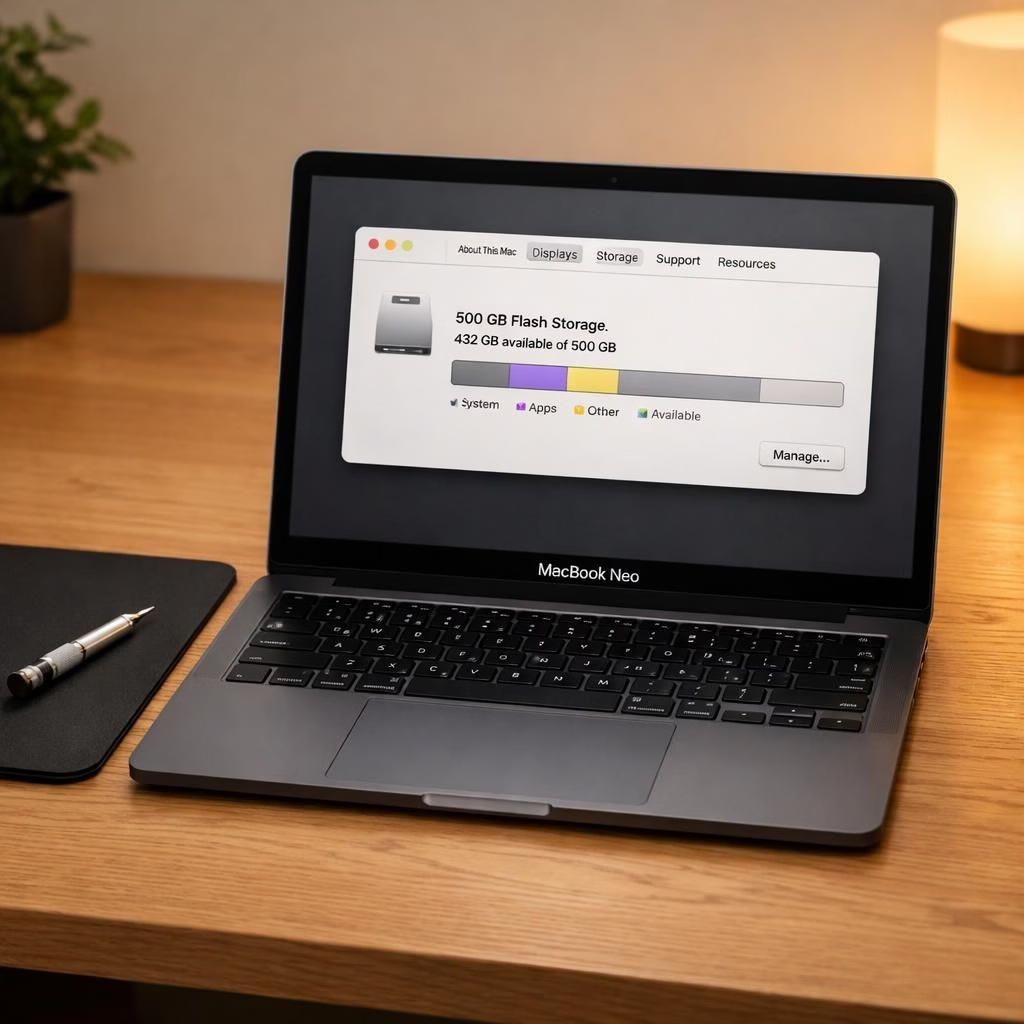
In 2026, tech fans cheer as the MacBook Neo embraces a bold SSD upgrade to 1TB. This sounds like a whisper-down-the-lane ASMR clip but lands in real hardware. The article stays sunny, practical, and a little cheeky, because upgrades should empower, not intimidate. The story starts with a YouTuber who swaps NAND chips like people swap oven mitts. It takes careful work, patience, and a few tools that glimmer in the desk lamp. What follows isn’t a quest for perfection, but a practical tour of what storage really does for daily life. You will see why a 1TB option matters for students, creators, and households that store photos, video, and backups like squirrels hoard acorns. It’s easy to overspec, easy to hype, and easy to misunderstand without context. We strip away the drama and show you what actually changes when you press the power button and fit a drive into a slim machine. This isn’t a romance with megabytes; it’s a candid look at headroom you can actually use in 2026.
MacBook Neo and the SSD upgrade journey
The MacBook Neo ships in several configurations, with 256GB or 512GB options common on the market. For many power users, the 512GB barrier feels like a ceiling. Some hobbyists bypass that limit by performing a NAND swap; it’s not a weekend project. The work is delicate and requires precise tools and static precautions. The payoff is tangible: the system responds faster, and the user has room to install large apps, offline media, and project files. A well-planned SSD upgrade can dramatically reduce daily storage friction. Tinkering carries risks, so plan backups, verify compatibility, and approach the upgrade with respect for the hardware. The people who pursue this path do so to have a laptop that remains useful years down the line, not a device that becomes cramped after a few big projects.
Why the MacBook Neo benefits from a 1TB SSD upgrade
For many, the appeal is straightforward: extra space means fewer doubts about what to keep and where. A 1TB drive supports apps, design projects, and personal media without constantly swapping to external storage or cloud services. The practical math matters, too: the price per gigabyte drops when you look at the long-term savings on storage headaches. The SSD upgrade translates into smoother installations, quicker backups, and less time spent deciding what to delete. If you plan carefully, the process is less a gamble and more a calculated effort to align capacity with your workflow. Consider warranty terms, static control, and reputable parts. If your routine includes large video files, a heavy IDE, or a growing music library, the 1TB option can feel like a wise companion. The goal is a balanced setup that preserves performance while offering peace of mind to keep the laptop productive for years.
In practical terms, the upgrade helps with big projects and busy days. The MacBook Neo with a 1TB drive offers a smoother experience for big files, demanding apps, and frequent backups. The decision is personal: this upgrade can pay off in fewer interruptions, a more comfortable creative routine, and the satisfaction of a future-proofed workspace. If you want help deciding, lay out your typical file types, project sizes, and backup habits, and share your story with us. We’re here to help you read the numbers and choose what best fits your work.
Practical steps for the MacBook Neo SSD upgrade
Whether you’re a curious student or a busy professional, here are practical SSD upgrade steps that emphasize safety and success. Start with a clear plan, then work methodically to minimize risk.
- Confirm model compatibility and backup all data before touching the internals.
- Gather essential tools: anti-static wrist strap, precision screwdriver set, and an appropriate replacement drive.
- Power down fully and discharge static before opening the chassis.
- Install the 1TB drive, reconnect cables, and reassemble with care.
- Boot the MacBook Neo, format the new drive if needed, and restore data from backup.
FAQ: common questions about the SSD upgrade path
- Is the 1TB upgrade worth it for most users?
- For people who handle large media projects, many apps, or frequent backups, yes. The extra headroom reduces daily friction and keeps the machine responsive longer.
- Will upgrading void the warranty?
- That depends on the device and region. Always check the manufacturer’s policy and document any service you perform. Use reputable parts and follow safety guidelines.
- How long does the upgrade take?
- Preparation, backup, and installation can take several hours for a careful, clean job. Rushing or skipping backups increases risk of data loss.
- Should I consider external storage as an alternative?
- External storage is convenient for infrequent large files, but an internal SSD upgrade typically offers better performance and future-proofing for ongoing work.
Whether you’re weighing the upgrade against external storage or deciding how aggressively to expand, the goal is to preserve smooth workflows and reduce repeated frictions. The MacBook Neo is more usable when headroom is built in, not after the next big project arrives.
Have you tried a storage upgrade yourself? Share your thoughts in the comments and help others decide.
Original article: YouTuber upgrades MacBook Neo to 1TB, posts ASMR video of the process — thank you to 9to5Mac for the inspiration.
References
- Original article: 9to5Mac coverage of the MacBook Neo upgrade
- Back up your Mac with Time Machine (Apple Support)