

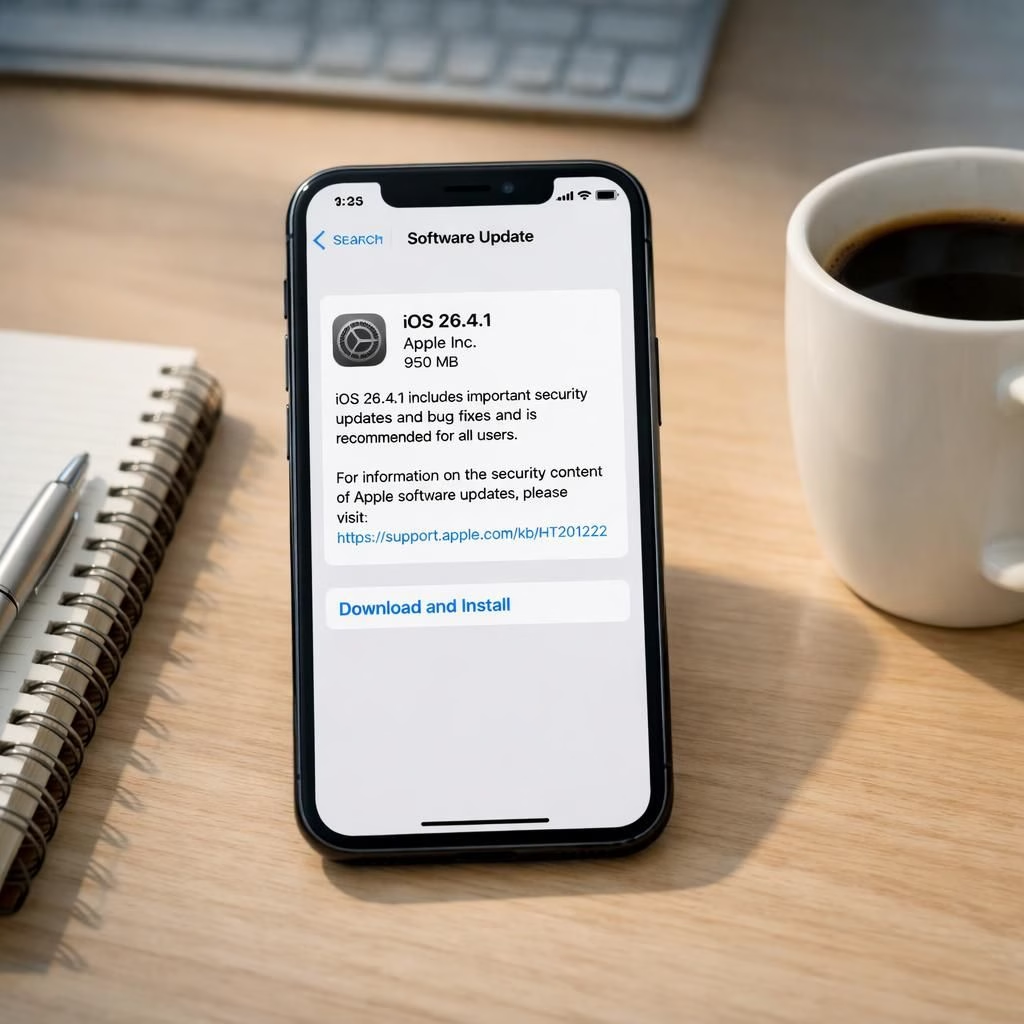
Welcome to the era of ios bug-fixes in 2026, where Apple quietly nudges its own ship toward calmer seas. The iPhone update 26.4.1 isn’t a fireworks show, but it does two practical things well: fix a stubborn iCloud syncing bug-fixes and nudge enterprise devices toward better default protections. If you like your tech predictable with a wink, you’re in the right corner of the internet. In short, this is the update that doesn’t pretend to rewrite the universe, but chooses to tidy the corners where your daily buzz lives.
ios Bug-Fixes in 2026: What Changes Matter
First, the iCloud syncing bug. People noticed data not syncing across devices, a vibe of ‘am I alone here?’ The 26.4.1 patch promises to fix that dissonance, so your notes drift across devices as if by a well-behaved magnet. The fix is practical rather than flashy, but in a world where your clipboard can vanish and reappear unpredictably, predictability counts. The bug-fixes are targeted and thoughtful, not a sweeping rewrite, and that matters day to day. The second change is the security tweak you might not notice until your device politely refuses a thief’s attempt. Stolen Device Protection is now enabled by default for enterprise devices. IT folks get one fewer checkbox to chase, and employees get a quiet assurance that their device has an extra layer of guardrails. The industry angle: this is a sensible move toward better out-of-the-box security, not a stunt.
Is 26.4.1 a blockbuster? No. Is it surprisingly useful? Yes. Apple doesn’t pretend this is a revolution; it frames the patch as a maintenance gift, something that keeps the phone humming while you focus on more exciting tasks, like arguing about battery life on social media. The lack of dramatic features is itself a feature. If you manage a fleet of iPhones in a small business, the default security setting means fewer policy gaps to chase, which translates to less time babysitting devices and more time actually doing work. If you are an everyday user, you may notice smoother iCloud operations and a slight bump in confidence when you hand your phone to a colleague. The update also signals a continuing trend: Apple prefers to fix what users actually complain about rather than chase the next sci-fi acronym.
Downloading is straightforward. If your device is in range of Wi‑Fi and power, the update should appear under Settings > General > Software Update. The size isn’t earth-shattering, which makes the install feel like a routine doctor’s visit rather than a root canal. After install, you might greet your iCloud prompts with a little more calm, and you may find IT emails about device protections quiet down a notch. The vibe: you get a small security upgrade without needing a coffee-fueled scroll through 37 new settings. And yes, you can still take a photo of your latte with confidence.
Special thanks to MacRumors for the original reporting and context: iOS 26.4.1 Includes These Two Changes for iPhones — your journalism helped shape this thoughtful reflection.
Want to discuss? Share your thoughts in the comments. If you have a different take on how security defaults affect your team, I’d love to hear it. And if you’re curious about the broader landscape in 2026, I’ll keep the updates coming with a smile.
bug-fixes that matter for enterprises
For developers and device managers, the message is clear: the update keeps your workflows intact while trimming some unnecessary friction. The default Stolen Device Protection is a boon for enterprises, reducing the number of policy touchpoints IT teams must chase. End users get a stronger baseline security without having to navigate a maze of new toggles. The result is a smoother roll-out, fewer tickets, and a tiny sense of security that feels earned rather than imposed.
As for the consumer side of the house, the patch is a reminder that not every update should feel like a rewrite. Sometimes the most valuable software improvements arrive as quiet, dependable polish: fewer flaky iCloud inconsistencies, fewer anxious whispers about stolen devices, and a device that behaves more like a reliable partner than a temperamental gadget. If you are skeptical of small upgrades, you might be surprised how often small polish touches reduce daily glitches and mental load.
In practice, you should install the update when convenient. Head to Settings > General > Software Update, confirm, and let the device do its thing. If you manage a fleet, you can route the update push with a level of confidence that a default security feature will do some heavy lifting behind the scenes. In 2026, the smartest tech moves are the quiet ones: steady fixes that prevent bigger headaches later on.
Practical steps for a quick rollout
- Verify devices are on a supported version and connected to power and Wi-Fi.
- Back up data before installing the update.
- Schedule updates in off hours for large fleets to minimize disruption.
Special thanks to MacRumors for the original reporting and context: iOS 26.4.1 Includes These Two Changes for iPhones — your journalism helped shape this thoughtful reflection.
Want to discuss? Share your thoughts in the comments. If you have a different take on how security defaults affect your team, I’d love to hear it. And if you’re curious about the broader landscape in 2026, I’ll keep the updates coming with a smile.
ios Practical tips for everyday users
- Keep your devices connected to a reliable Wi‑Fi network during updates to avoid partial installs.
- Back up important data before applying any patch so you can recover quickly if something goes awry.
- Review security settings after an update, even when defaults look solid, to tailor protection to your work.
References
- iOS 26.4.1 Includes These Two Changes for iPhones — MacRumors
- Apple Newsroom — official coverage of iOS updates
- 9to5Mac coverage of iOS 26.4.1