

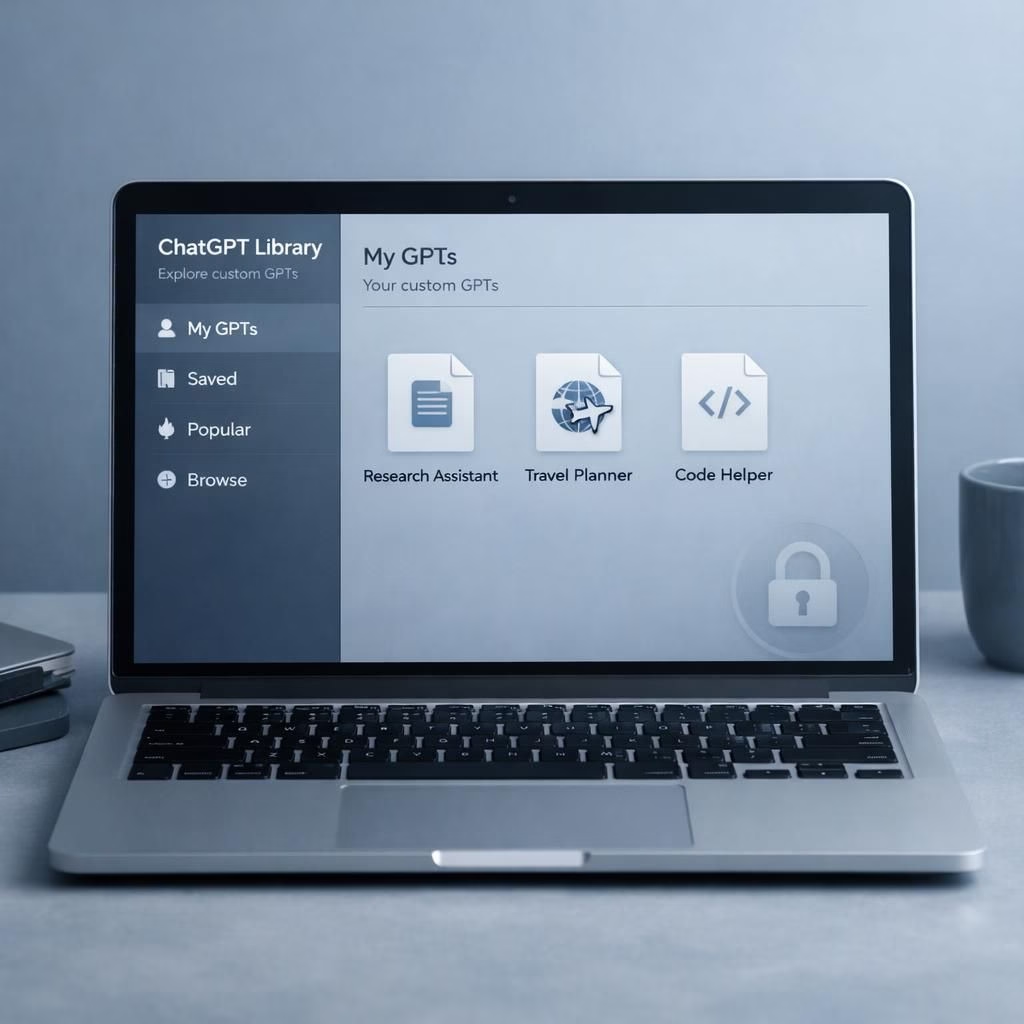
In 2026, OpenAI rolled out a feature called ChatGPT Library, a cloud-based place to stash your personal files. The ChatGPT Library is available to Plus, Pro, and Business, while the European Economic Area, the United Kingdom, and Switzerland wait their turn. When I refreshed ChatGPT in a browser, Library appeared on the left sidebar with files I had uploaded in the last two weeks. By default, GPT saves uploaded content in a dedicated, secure location so you can reference it later, aligning with Security Tips in 2026 for organized, recoverable assets. If you generate AI images, they appear in the Images tab, separate from Library.
ChatGPT Library: What it stores and how to use it
The ChatGPT Library stores items you upload or create inside the chat experience. It holds documents, spreadsheets, presentations, and images you manually add. It does not automatically crawl every chat to gather materials, which would be a privacy nightmare. The Library is your personal cloud filing cabinet in the cloud; you decide what sits there. If you work with generated images, those stay in the Images tab, not in Library, keeping visuals separate from documents.
To use Library, open ChatGPT and click the Library tab. Then choose Upload and select files. You can also create and save files directly from a chat. The files remain in your account until you delete them manually. Deleting a chat containing a file does not delete the Library copy. This separation matters: past chats won’t erase your carefully curated digital shelf.
- Open ChatGPT and navigate to Library.
- Click Upload and attach your files.
- Optionally create documents or images and save them to Library.
- Manage files with delete or rename actions; remember 30 day purge for deleted items.
OpenAI notes that by default, the Library is a dedicated, secure location for both uploaded and created content. The goal is easy reference in future chats, not a perpetual scavenger hunt. The policy balances convenience with accountability. If you delete a chat, the library copy remains until you delete it yourself. OpenAI will purge files from its servers within 30 days of deletion, a timeline likely tied to legal and compliance considerations.
Security Tips in 2026: data retention and purge policies
Keeping data safe means knowing where it sits. The Library stores your files in a secure location, insulated from casual browsing, enabling quick access to reference materials. The 30-day purge rule is common across many compliance regimes. In practice, you can delete a chat and still retrieve the file for a while, but after 30 days those files are purged from OpenAI’s servers. If you need stronger guarantees, export sensitive data to your own storage or delete items manually.
Security is not about paranoia; it’s about disciplined organization. The Security Tips in 2026 remind us to keep a clean inventory, avoid uploading secrets, and to perform periodic audits of Library items. A lightweight data hygiene routine—audit items, rename versions, and prune stale documents—helps maintain a trustworthy library.
ChatGPT Library: safeguards and best practices in 2026
Even with good defaults, careful handling matters. Use strong authentication, monitor who can access shared folders, and avoid uploading private credentials. Encryption protects data in transit and at rest, but user discipline completes the security picture. Treat Library as a curated collection rather than a dump of everything you’ve discussed. If you’re a developer or team lead, set clear retention windows and document your policies for staff, then share the boundaries with users. In short: keep what you need, delete what you don’t, and be mindful of sensitive data.
Following the Security Tips in 2026 helps maintain practical data hygiene.
Other OpenAI news and useful context in 2026
Beyond Library, OpenAI has several ongoing updates. ChatGPT Pulse is headed to the web, though the rollout timing for free access versus paid tiers remains unclear. OpenAI is retiring the GPT-4o model, while GPT 5.2 is pitched as good enough for next steps. The temporary chat feature is getting a useful upgrade, and the ads program is not yet rolling out globally. Meanwhile, the ad strategy remains cautious, balancing monetization with user experience. These shifts matter because they shape how you interact with your personal library and your data across the platform.
In practice, this ecosystem invites a practical mindset: treat Library as your personal workspace, not a random stash. You can keep work documents intact, share a few assets with teammates by linking to Library items, and still keep your personal files separate in a local drive or a preferred cloud service. The goal is a smoother, more predictable workflow, not an omniscient memory palace that never forgets anything.
For those who like specifics, here are quick takeaways: keep segments in Library organized by project, rotate outdated assets, and pair Library use with a simple backup routine. If you’re experimenting with AI-generated content, remember that images live in the Images tab; do not confuse them with documents. The separation helps you locate what you need faster and reduces the risk of accidental sharing.
Ultimately, the idea behind ChatGPT Library and the surrounding Security Tips in 2026 is simple: make your digital life easier, while keeping control over data retention. Yes, it’s a little bureaucratic, but it beats the chaos of unmanaged uploads. And yes, it’s also a reminder that the future of chat-based tools includes structured storage, clear retention policies, and a user interface that wants your files, not to own your life.
As with any evolving feature, your experience matters. How do you organize your files in Library? Have you noticed the 30 day purge affecting your workflow? Have you found clever ways to tag or categorize content for future reference? Share your strategies and lessons learned in the comments below so we can all improve our digital filing habits together.
Special thanks to the original article for the foundation of this analysis. Original article: OpenAI’s ChatGPT Library and related features — https://openai.com/blog/chatgpt-library.