

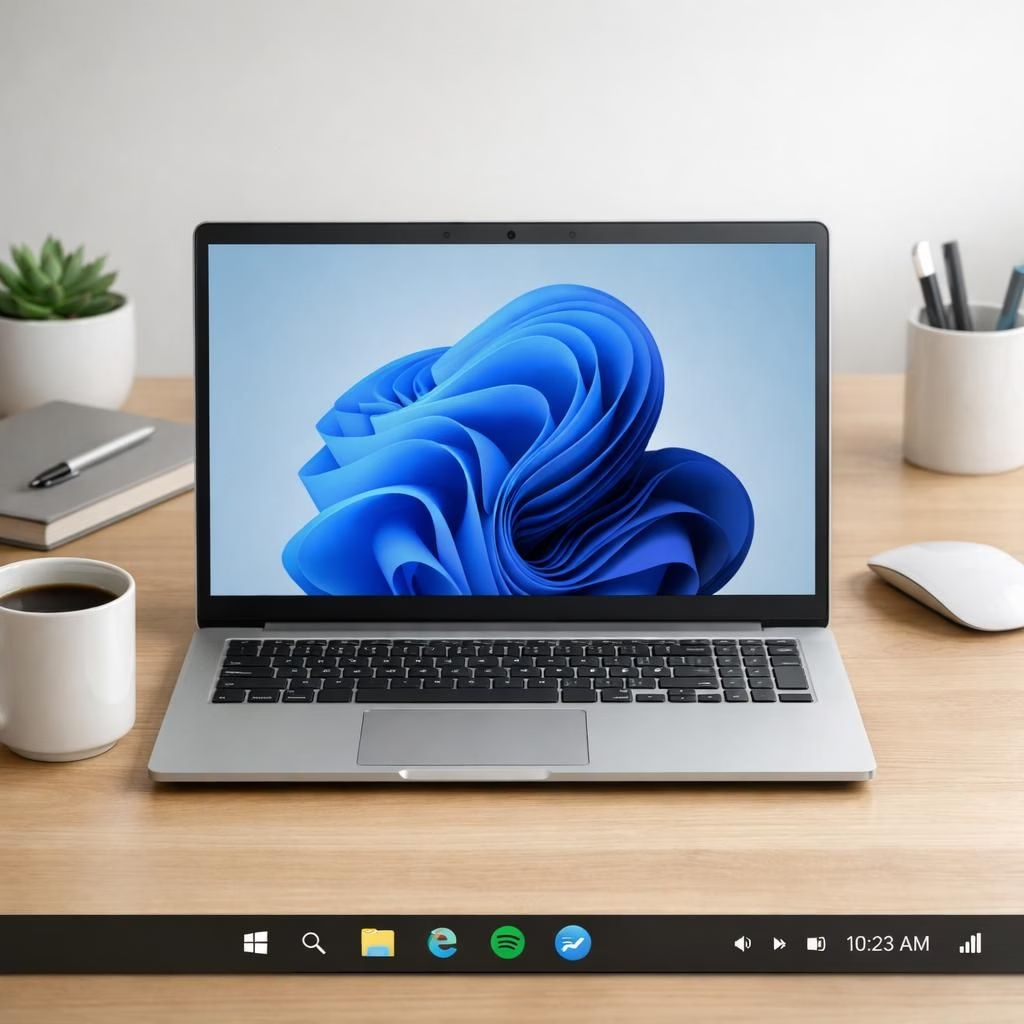
Like a good desk lamp that quietly disappears when you start typing, Windows 11 brings practical tweaks to the Taskbar scene. The big idea isn’t nostalgia dressed up as feature parity; it’s real control where you actually live your digital life: at the bottom of the screen, or possibly off to the side, or in a slim strip that refuses to steal focus. In short, Windows 11 and the Taskbar are getting a fresh coat of customization, aimed at people who juggle dozens of apps at once and would rather not play hide-and-seek with icons. It’s not a revolution, but it is a reminder that detail matters when you’re clicking, dragging, and switching tasks all day long.
Windows 11 Taskbar Personalization: Movable, Shrinkable by Design
The core promise is simple: move the Taskbar where you prefer, shrink it when you’re feeling minimalist, and still keep the icons within reach. You can slide the Taskbar to the left, right, or bottom, depending on how you frame your workflow and how much space your windows demand. This isn’t just cosmetic trickery; it’s about reducing friction for multitaskers who swap between chats, documents, and dashboards with the ease of a well-practiced pianist. The new controls emphasize personal layout rather than insisting on a one-size-fits-all dock.
Microsoft’s approach feels practical. It borrows a page from experienced power users who asked for more granular control, and it returns with settings that are discoverable without turning into a scavenger hunt. The goal: less fiddling, more focus. If you’ve ever dragged a stubborn icon back into place and thought, “There has to be a better way,” the update finally lands in a way that makes sense. The interplay between movable placement and a compact, shrinkable bar creates a calmer, more intentional desktop rhythm.
Windows 11 Taskbar Tips: Make the Taskbar Yours in 2026
To capitalize on the changes, start with a few practical steps. Open Settings, head to Personalization, then Taskbar. There you’ll find toggles for alignment, icon size, and whether the Taskbar should be visible on the desktop edge as you work. If you’re left-handed or simply prefer fewer distractions, you can anchor the Taskbar to the side and still preserve quick access to the most-used apps. If you want a leaner interface, you can shrink the button height without sacrificing legibility. It’s not magic; it’s thoughtful engineering that respects your workflow.
For those who like a bit more flair, combine these options with a custom color scheme or a subtle transparency. The result is a Windows 11 desktop that feels less like a default shell and more like a personal workspace. The goal is a consistent, readable layout that mirrors your day-to-day routine. And yes, you’ll still get that satisfying “snap” when you line up apps, which is the desktop equivalent of a sigh of relief after a long stretch.
And yes, the Taskbar has its own rhythm. On a use-case level, imagine a developer dragging the Taskbar off to a side monitor for focused coding, or a designer shrinking the bar to maximize the canvas during mockups.
Even as we celebrate the renewed flexibility, it’s worth noting a few caveats. The best experiences come with a little planning. If you’re experimenting with alignment, test how notifications behave and whether task-switching remains fluid across different monitor setups. You may find that certain arrangements shine with particular apps or workflows, while others require minimal tweaks to hit that sweet spot. The aim is to empower not overwhelm, to give you a crisp, predictable canvas on which your daily work can unfold.
From a design perspective, it’s refreshing to see Windows 11 address real-world needs without sacrificing the crisp aesthetics that define the platform. The updated Taskbar complements the Start Menu and other interface elements, creating a cohesive experience where you feel in control from the first click. The interplay between dynamic sizing and flexible placement is more than a gimmick; it’s a thoughtful response to how people use modern computers today.
As with any evolving feature, the best recommendation is to experiment, refine, and settle into a configuration that supports your workflow. If you enjoy a tidy, predictable desktop, you’ll appreciate the chance to shrink the Taskbar when you don’t need the extra room. If you crave quick access to a bustling set of apps, you’ll enjoy moving the Taskbar nearer to the action. Either way, the Windows 11 experience now offers a frictionless path to a personalized, efficient workspace.
Original source and inspiration: Five years later, Windows 11 brings back much-missed taskbar options (and more). Thank you to the Ars Technica team for the thoughtful reporting and the spark that started this conversation.
If you enjoyed this exploration of the Windows 11 Taskbar, drop a comment with your own setups or experiments. I’d love to hear how you’ve shaped your own desktop to feel more like you. Share your thoughts in the comments below.
Practical setup: quick steps to try
- Open Settings > Personalization > Taskbar and adjust alignment and icon size.
- Experiment with moving the Taskbar to a side monitor for focused work sessions.
- Test notifications and app snapping to ensure a calm, predictable layout.
FAQ
- Can I move the Windows 11 Taskbar to a side monitor? You can adjust alignment in Settings > Personalization > Taskbar.
- Will shrinking the Taskbar affect readability? Most users balance size and clarity by tweaking icon size and spacing.
- Are these changes available on every monitor? Multi-display behavior is supported, though some apps may vary in how they render UI.
Conclusion: A calmer, more personal desktop
Windows 11’s moveable and shrinkable Taskbar is a small feature that pays off in bigger days. The goal isn’t flash, but a more predictable, personal workspace that adapts to how you work. Try a few configurations, and you’ll likely settle into a setup that feels both efficient and comfortable.
Original source: Five years later, Windows 11 brings back much-missed taskbar options (and more).
References
- Five years later, Windows 11 brings back much-missed taskbar options (and more) — Ars Technica
- Microsoft Brings Back Windows 10-Style Taskbar and Start Menu Customization in Windows 11 — TechPowerUp
- Windows 11 taskbar and Start Menu customization — The Verge