

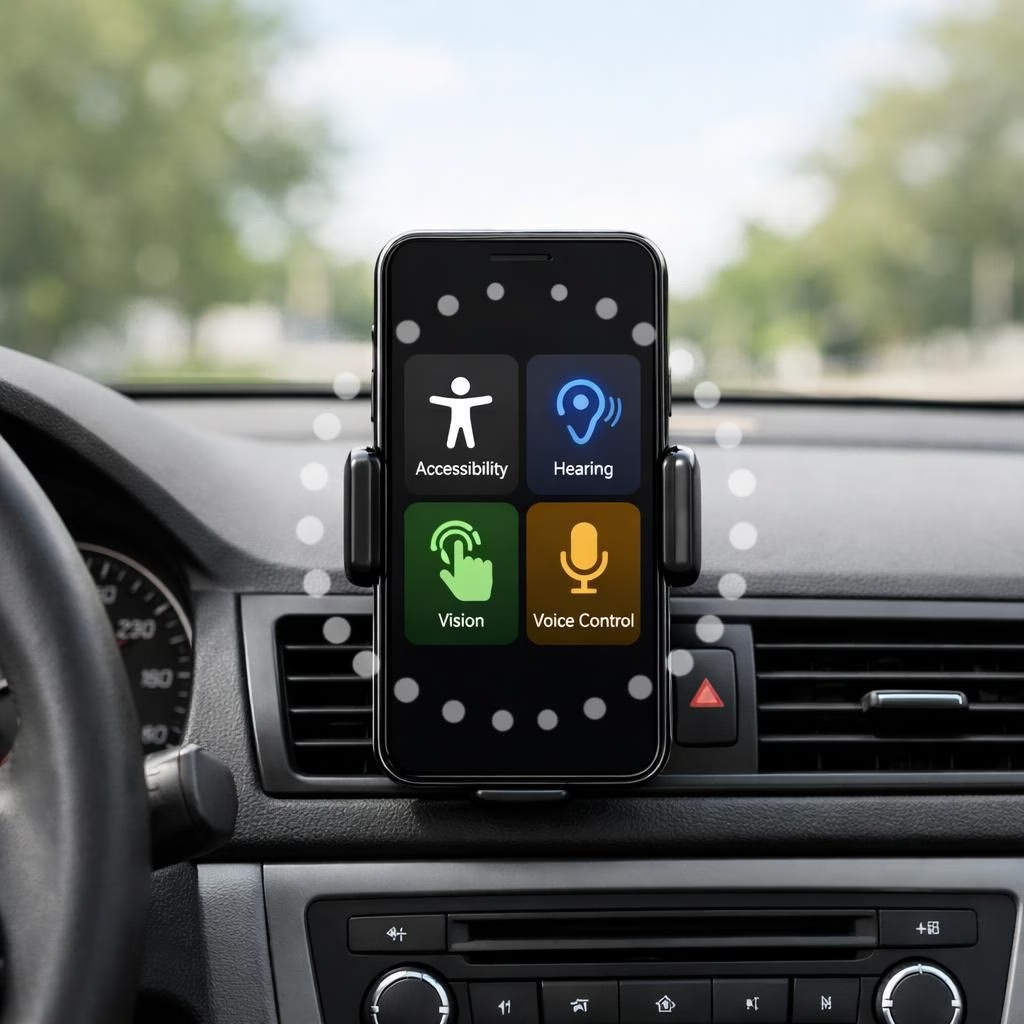
When I planned to work from the car, I expected the usual sensory chaos. But Apple’s Accessibility and Vehicle Motion Cues features stepped in like helpful co-pilots, turning a potentially queasy commute into a surprisingly productive stretch. Vehicle Motion Cues, introduced in 2024 and refined by 2026, pull from the iPhone, iPad, and MacBook’s accelerometer and gyroscope to align the on-screen world with the car’s moves. Accessibility lets you auto-activate on motion or toggle manually, and you can customize dot size, color, and density.
Here’s the idea in plain English: keep your eyes on a dynamic display while your inner ear feels the car’s twists. The dots move around the edges, tracing the car’s turns and braking so your brain gets consistent cues. Yes, it sounds unusual, yet the effect feels natural after a few minutes. The periphery dots orchestrate a gentle motion that reduces the mismatch between what your eyes see and what your inner ear feels—like a tiny, rhythmic dance floor for your screen. This is the essence of the Vehicle Motion Cues approach, and it works best when you lean into the idea rather than resist it.
Configuration is simple and flexible. In iOS, iPadOS, and macOS Accessibility settings, you can choose auto-activate on motion or keep the dots off until you flip the switch. You can tune dot size, color, and density to your taste. The goal is not to overwhelm you with visuals but to provide just enough context to ease the brain’s motion queasiness. A cautious tester might describe it as a small, helpful nudge rather than a flashy feature, and that’s precisely the point. The same functionality translates across devices, so you can expect a similar experience whether you’re on an iPhone, iPad, or MacBook.
Vehicle Motion Cues: A Practical Road Tool
During real-world road trips, the combination of Vehicle Motion Cues and Accessibility becomes a reliable companion. When the car makes a sharp turn, the dots sweep in a coordinated motion, giving your eyes a moving guide to trust. When the road is smooth and straight, the dots ease into a softer cadence so they don’t compete with maps or on-screen text. In practice, my reading and writing sessions in apps like Kindle and note-taking tools extended to several hours on a single leg of a trip, with only occasional attention dips during long straightaways. The key is to tune density and color so the display doesn’t fight your map or text in these moments. If you find the dots too bold on maps, dimming or reducing density is a quick fix that preserves the benefit without stealing the show.
One handy takeaway is the balanced compromise between visibility and subtlety. The default options are unobtrusive for most users, but advanced settings let you tailor the experience for a bright cabin or a dim, late-night drive. And yes, the motion cues do more than just look neat; they provide a frame of reference that your brain can latch onto, which translates into longer, more comfortable sessions with your digital tools while traveling.
Accessibility: Personalization and Safety on the Road
A small, often overlooked trick that enhances convenience is the Back Tap feature on iOS 18 and newer. You can assign a double-tap to quickly toggle Vehicle Motion Cues on or off, a boon for when you want a quick switch between work mode and pure driving mode. To set it up, go to Accessibility → Touch → Back Tap, then choose Double Tap and assign Vehicle Motion Cues. The setup is deliberately simple: two taps, and you’re either in the motion-augmented reading zone or back to a standard, distraction-free display. This is where Accessibility mutates into a practical habit, making the feature accessible without fiddling with menus during a bumpy stretch of highway.
Beyond the single-tap convenience, you’ll find that the ability to toggle through Back Tap means you can quickly decide whether the optic rhythm helps or hinders your navigation on a given route. If you’re navigating a crowded city with dense maps, you might want the dots to stay engaged. On a long, straight highway where maps are the only thing moving, you may opt to simplify the visual scene and rely less on the dots. It’s all about balancing focus, comfort, and productivity on the road.
In practice, the Vehicle Motion Cues and Accessibility combo shines on long trips. It’s not about magic; it’s about a thoughtful, customizable cue system that aligns your device with your vehicle’s motion. I’ve found it particularly helpful when I need to read, draft a quick review, or manage notes while the car does the steering. The feature adapts over time to your preferences and the driving context, which is a nice reminder that software can be a genuine road buddy rather than a flashy gadget.
If you’re curious about whether this will work for your setup, start with the default density and a medium dot size. Observe how your eyes and ears respond as you drive on mixed terrain. You can always tweak settings later. The practical verdict is simple: Vehicle Motion Cues and Accessibility are not a cure for all motion sickness, but they do create a more forgiving screen experience that makes road time a lot more productive and a lot less nauseating.
Thanks to the thoughtful way these cues are integrated and the easy toggle options, you can tailor the experience to your workflow. The key is to test a few configurations, then adjust to match the road you’re on. And if you’re traveling this year, 2026, you’ll likely find that the system has matured into a dependable companion on many trips.
Original article attribution: I’d like to extend a sincere thank you to The Verge for the original material and coverage on Vehicle Motion Cues and the concept of dot-based periphery motion. Original article and imagery references: The Verge.
Would you try Vehicle Motion Cues and Accessibility on your next drive? I’d love to hear your experiences—share your thoughts in the comments.
FAQ
- What are Vehicle Motion Cues? They are periphery-dots that move in sync with car motion to reduce the visual-vestibular mismatch.
- Do these features work on all Apple devices? They’re designed to work across iPhone, iPad, and Mac, but availability may vary by model and OS version.
- Can I disable them quickly? Yes. Use Back Tap or your device’s Accessibility controls to toggle on/off.
- Will they affect maps and navigation? You can adjust density or dim the dots on maps to keep navigation clear.
The practical takeaway is simple: Vehicle Motion Cues and the joined Accessibility options offer a practical path to more comfortable road time without sacrificing productivity.
References
- Original Verge article: https://www.theverge.com/tech/942854/apple-vehicle-motion-cues-review-really-work