

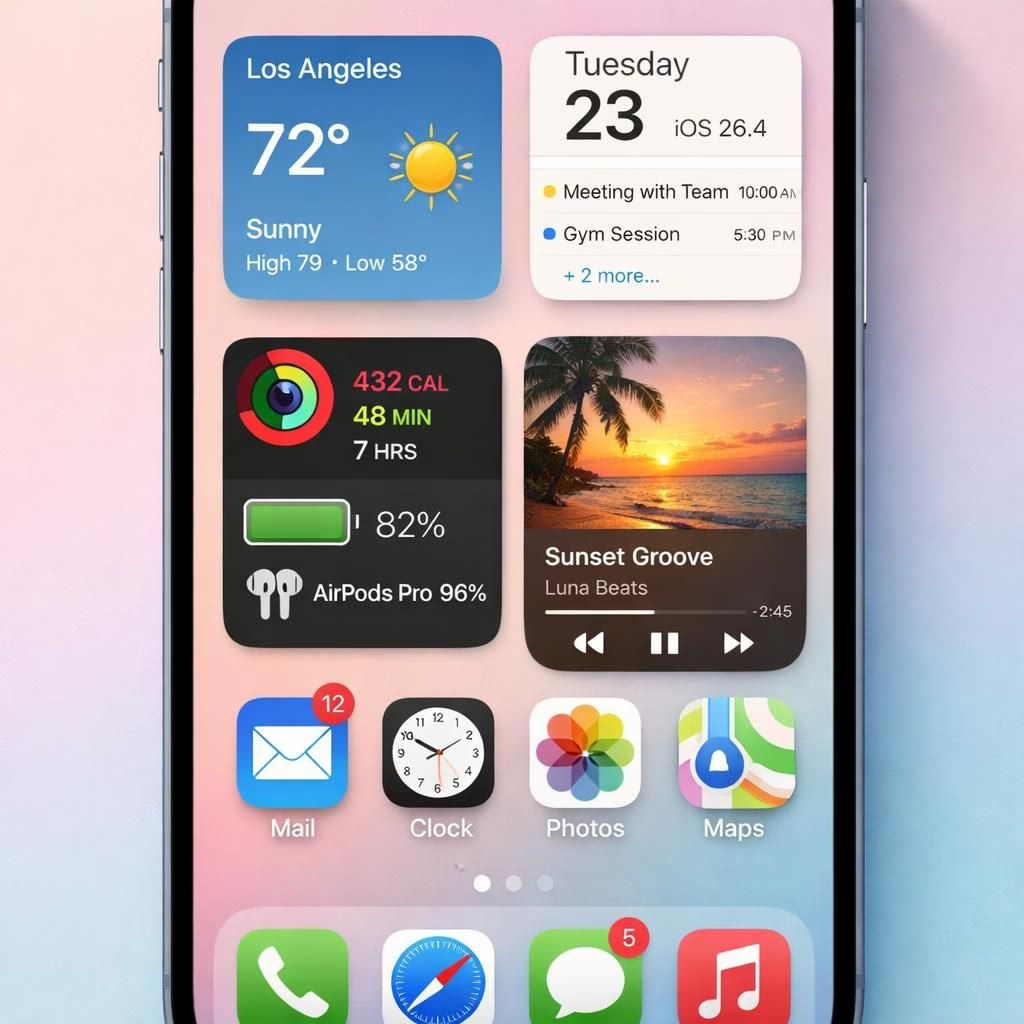
iOS 26.4 arrives with brand-new widgets for the iPhone Home Screen. This thoughtful guide celebrates the tiny screens of progress, delight, and utility in our pocket computers. It promises more than pretty icons; it invites you to tailor information to moments that matter. If you crave order in a busy digital life, these widgets are small helpers with big attitudes. iOS 26.4, meet widgets—your new favorite sidekick on the Home Screen.
iOS 26.4 widgets: A Friendly Wake-Up Call for Power Users
Put simply, iOS 26.4 widgets are small blocks of information that live on your Home Screen. They can show weather, calendar events, reminders, or headlines without opening an app. The update refines how these widgets appear and behave, letting you pick sizes, stacking, and refresh rates. The experience is friendlier than ever, with smoother transitions and fewer taps to reach the data you need. If you prefer a clean Home Screen that still feels capable, this is your moment. And yes, there is humor baked in—because even your widgets deserve a personality.
Why iOS 26.4 widgets Change the Everyday iPhone Experience
The goal is simple: fewer taps, faster access to what matters. Widgets surface at glanceable moments and adapt to your routine. You can stack multiple widgets into Smart Stacks, letting iOS flip to the right one as time, location, or activity shifts. The change reduces friction for common tasks—checking the weather before you step out, glancing at meetings between typing, or monitoring battery life while you roam. The payoff is real: faster access to critical information, with less urge to open dozens of apps to find a single fact. The design stays playful yet unobtrusive, so tech feels seamless rather than loud.
Practical Setups: iOS 26.4 widgets in Real Life
Getting started with iOS 26.4 is surprisingly intuitive. Press and hold on the Home Screen, choose widgets, and drag the ones you care about into your layout. You can resize widgets to fit your density; small ones for a crisp grid, or larger ones for at-a-glance details. Create a focused zone on your screen with weather in one corner, calendar in another, and a quick note widget nearby for fleeting ideas. Experiment with Smart Stack to rotate between widgets automatically as you move through your day. The goal is to tailor information surfaces so they save seconds and reduce anxiety about absent data.
- Long-press the Home Screen, select widgets, and pick the ones you want.
- Drag to rearrange and resize; align with your grid.
- Use Smart Stack to cycle between items based on time and location.
- Test different combinations and keep a clean, consistent look.
Smart Tips for iOS 26.4 widgets Enthusiasts
Privacy stays in the foreground. Prefer concise data feeds and disable extra fetches that burn battery. Keep widget content minimal and legible for quick glances. Use widgets to replace repetitive taps, not to crowd your screen with data never used. If you are experimenting, start small and build up to bigger layouts. Remember, the goal is efficiency with personality, not clutter.
Design, Humor, and Practicality
Apple often walks a fine line between function and flair. With iOS 26.4 widgets, the company leans toward calm, practical design while letting widgets wear a bit of humor on their sleeve. The result is a Home Screen that feels both familiar and fresh. The widgets update smoothly, and the overall rhythm of the interface improves because information you actually need comes into view faster. The jokes are not loud; they are tasteful, well-timed, and optional for those who prefer pure function with style.
As always, test your layout at different times of day. A good setup survives a commute, a meeting, and a coffee break. If you find a combination that truly reduces taps and delivers data with a wink, you’ve hit the sweet spot.
We’d love to hear what you think about iOS 26.4 widgets and how you’ve arranged your Home Screen. Share your thoughts in the comments below.
Original reporting and inspiration: 9to5Mac. Thank you for the solid coverage and the initial ideas that sparked this piece.
FAQ: iOS 26.4 widgets
- What are iOS 26.4 widgets? They are small blocks of information that sit on your Home Screen, letting you see weather, calendar items, reminders, and headlines at a glance.
- How do I set up a Smart Stack with widgets? Long-press the Home Screen, choose widgets, and drag to create a Smart Stack that rotates based on time or location.
- Will widgets affect battery life? Keeping fetches concise helps, but use the minimum necessary widgets for your day.
Conclusion: a cleaner Home Screen with personality
The right mix of widgets and iOS 26.4 can trim taps and sharpen focus. Start small, test across times of day, and adjust as your routines shift. A well-tuned layout feels invisible yet powerful—your data ready when you need it, without the clutter.
References
- Original source: 9to5Mac