

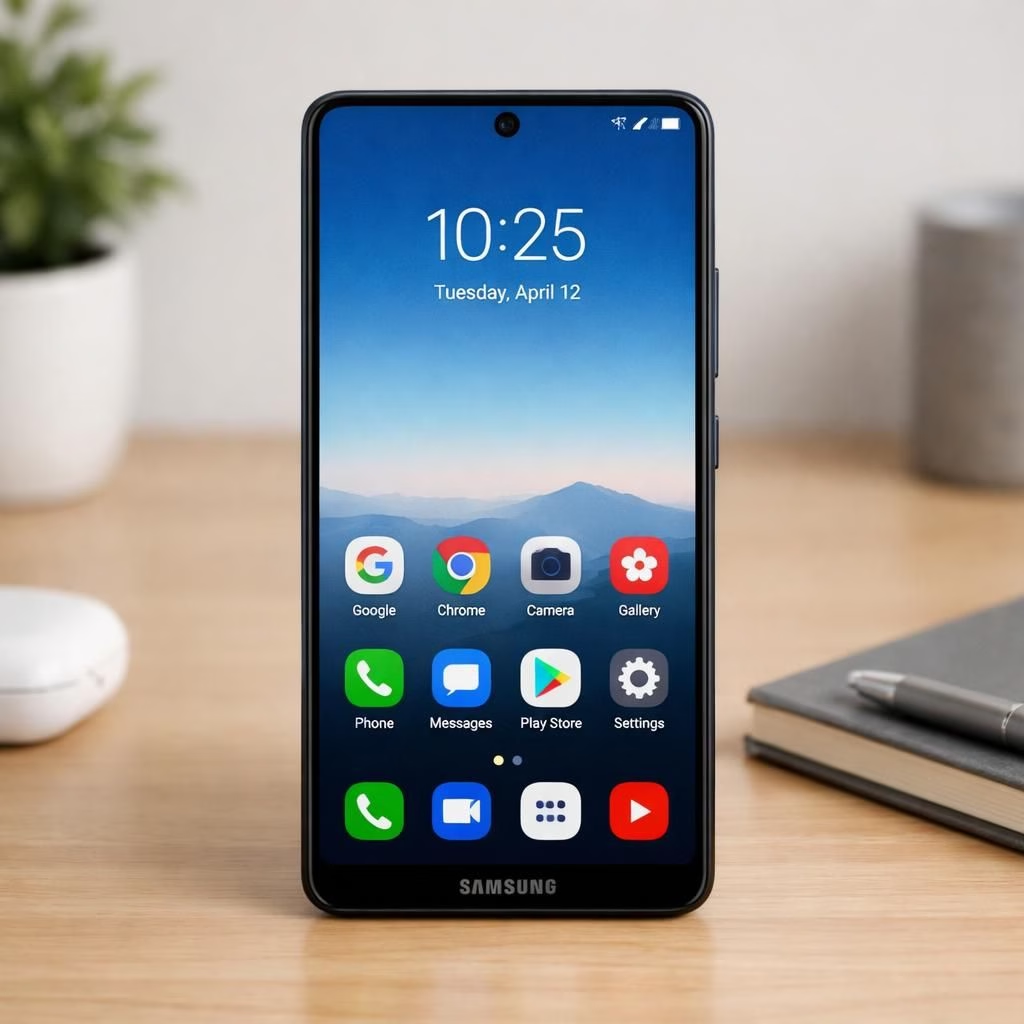
When you own a capable Android device from Samsung, tiny features unlock big daily wins. This guide reveals Android gains and Samsung tricks that often hide in plain sight, waiting for a curious tap in 2026.
Android Hidden Features You Should Try
On Android-powered devices, many clever features stay buried. Here are five hidden features that can surprise you in 2026. They blend practical usefulness with a touch of flair, so you actually enjoy exploring your device instead of filing it under “mythical tech.” Updates across the Android ecosystem can add twists that make these tricks even more delightful.
- One-handed mode: This Android-friendly feature squeezes the UI so you can reach everything with a thumb. On Samsung devices, enable it via Settings > Display > One-handed mode, or use the gesture your model supports. The result is a smaller, thumb-friendly interface that still runs Android smoothly. It shines when you’re commuting, cooking, or juggling a coffee in one hand and a playlist in the other.
- Samsung‘s Edge Panels: Edge Panels place favorite apps, tools, and clipboard shortcuts within a swipe’s reach. Dive into Settings > Display > Edge Panels and tailor panels to your daily routine. You’ll notice Android’s efficiency mindset in action, and the screen edge becomes a trusted shortcut rather than a gimmick.
- Secure Folder: This is a private vault within your Android-powered device. Move apps, photos, and files into a separate encrypted space. You’ll keep work materials distinct from personal stuff, and you’ll have an extra layer of peace of mind that’s easy to manage from Settings > Biometrics and security > Secure Folder. On Samsung hardware, privacy stays practical and neatly compartmentalized.
- Samsung DeX desktop experience: When you connect your phone to a monitor, DeX lets you use Android apps in a desktop-like environment. Attach a keyboard and mouse, and you’ve got a compact workstation powered by Samsung hardware. It’s not a full PC, but it feels surprisingly close—and it makes Android-aware multitasking feel intentional rather than experimental.
- Bonus ideas: Bixby Routines and Private DNS deserve a quick mention. Bixby Routines automate tasks when you trigger a location, time, or action, creating a tiny Android-powered assistant that learns your day. Private DNS adds a shield around your browsing, which is a sensible habit in a connected year like 2026. On Samsung, these automations and secure settings translate into real-world time savings and less fiddling with menus. Android keeps expanding the toolkit, and Samsung often surfaces the best of it in a handset-friendly package.
Samsung Tips for Everyday Android Joy
Now that you’ve met five hidden features, here are practical ways to weave them into daily life, with additional Samsung-specific advantages. The goal is to make Android feel familiar, warm, and a bit mischievous in all the right ways. If you’re reading this in 2026, you’ll likely find these tips even more polished on newer models, but the core ideas stay solid across generations of Android-based Samsung devices.
- Quick Share and nearby sharing: Samsung’s Quick Share makes Android file transfers frictionless between nearby devices. On Android, you can share photos, documents, or links with a tap. It feels like magic until you realize it’s thoughtful design from Samsung tuned for the Android ecosystem. Use Quick Share when you want a fast, low-friction transfer that respects your privacy choices.
- Samsung Pass for passwordless entry: This Android-friendly feature leverages biometrics to sign you into apps and websites. It’s a practical, time-saving trick for those who juggle multiple services, and it sits neatly inside the Samsung ecosystem on your Android device.
- Private DNS and safer browsing: Tweak DNS settings to enforce a more private browsing experience on Android while using Samsung services. It’s a bite-sized security upgrade that doesn’t slow you down—just more peace of mind as you navigate the web on the go.
- Clipboard and multitasking with Edge Panels: Your Android workflow gets smoother with quick clipboard access and edge panel shortcuts. It’s a small daily win that compounds into better focus and fewer screen-surfing detours on Samsung hardware.
- Samsung DeX, again, for productivity bursts: If you’re ready for a bigger screen moment, DeX lets you collapse errands into a single, efficient workflow. On Android, Samsung DeX breathes life into your mobile tasks when you’re near a monitor, making the phone feel like a mini workstation and a friendly companion in your 2026 routines.
With these ideas, you’ll notice Android and Samsung working together to simplify your life rather than complicate it. The best hidden features are those you forget you have until you need them—then they appear and save the day with minimal fuss. In 2026, the synergy between Android’s breadth and Samsung’s polish is not just a selling point; it’s a daily utility experiment that keeps rewarding curiosity.
Have you discovered a favorite Android or Samsung trick recently? Share your experiences in the comments and tell us which feature surprised you the most.
Original source: Android Authority: Hidden features Samsung phone.
References
- Edge Panels and other Samsung features: Samsung Edge Panels
- DeX desktop experience: Samsung DeX
- Private DNS and safer browsing (general Android guidance): Android Private DNS
- Original Android Authority article (source): Original Android Authority article