

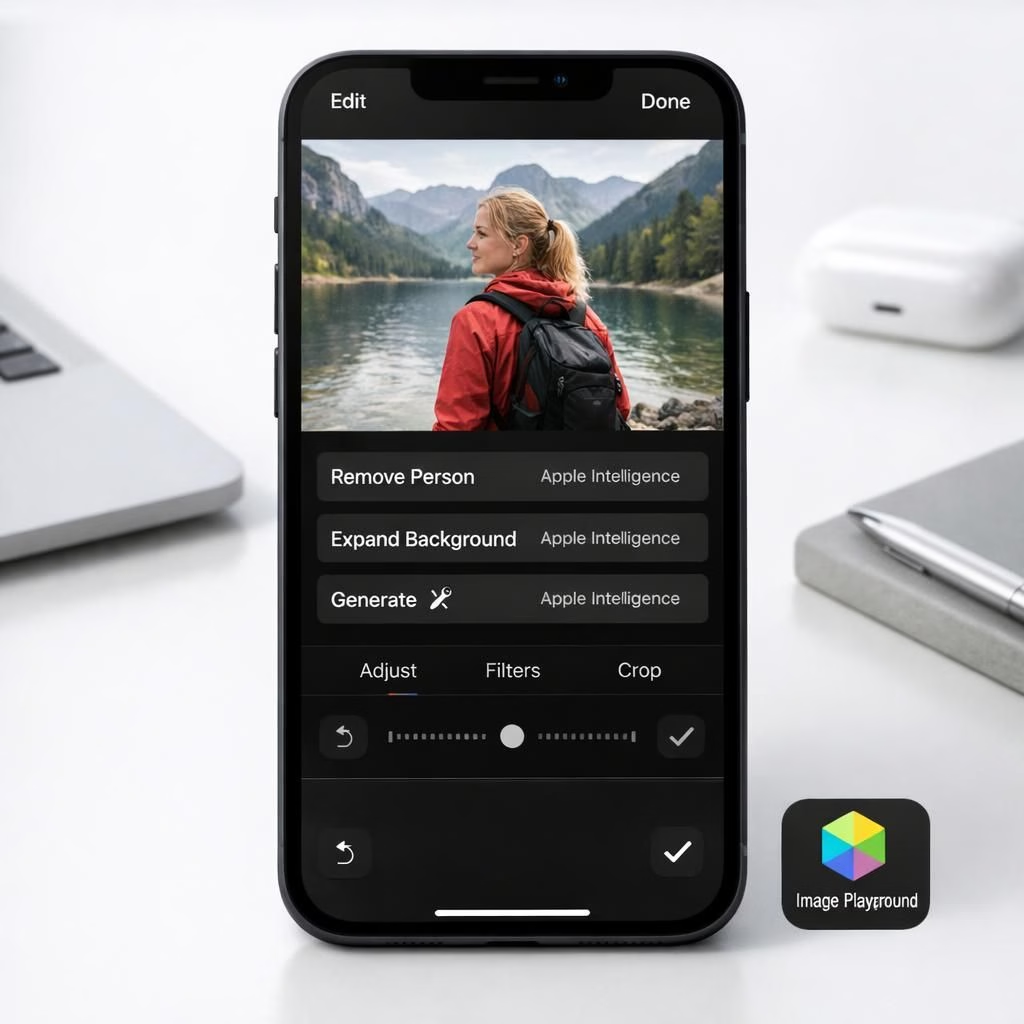
Welcome to a breezy tour of how Apple Intelligence and the Photos app are teaming up in iOS 27. Apple leans into AI-powered polish that still respects your messy but glorious photo library. If you like your memories fast, friendly, and a tad humorous, you’ll enjoy how this update treats you like the thoughtful adult who owns a camera, a smartphone, and a calendar all at once. The synergy of Apple Intelligence and the Photos app promises fewer clicks, kinder edits, and enough clever touches to make you feel you’re editing with a helpful intern who actually knows color theory.
Apple Intelligence boosts the Photos app editing workflow
The editing experience now sits behind the familiar Tools panel in the Photos app. Tap the icon with sliders, then select Apple Intelligence, and you’ll see Clean Up, Extend, and Reframe. Clean Up uses new AI models to remove objects more reliably. It used to handle small items; now it can reconstruct backgrounds with generative AI. The goal isn’t to erase memory of the scene, but to help the memory look like a polished postcard. The editing remains non-destructive, with quick before/after previews so you stay in control rather than surrender to a black box. That balance matters when a vacation photo suddenly looks like it was retouched during a caffeine-fueled night shift.
There are three object-removal options: Fast, High Quality, and Auto. Fast moves quickly for simple edits; High Quality handles complex detail; Auto asks the app to decide the best balance. The Photos app isn’t pretending to conjure new reality; it’s filling gaps with plausible textures and colors so the final result looks natural on phones and screens alike. The streamlined options give you safe defaults, while still offering expert-level control if you want it. This is the kind of AI that respects your photo rather than reimagining your vacation as a sci‑fi montage.
Extend lets you change the crop of an image by expanding the borders around content, zooming out a bit or shifting the composition. It uses generative AI to fill in missing areas, and you can adjust the borders with pinch gestures. The feature is handy for wallpaper adjustments or portrait framing that demands a broader stage. Apple also uses Extend to craft wallpaper backgrounds for iPhone Lock Screens that don’t quite fit the display—no more awkward edge cropping in public view. And if you want a different angle, Reframe is the hero, changing perspective using the spatial data the iPhone captured when the shot was taken. After you drag, AI fills any missing pixels to keep the scene cohesive. Reframe is powered by a combination of spatial awareness and learning, which means fewer grainy gaps and more believable geometry. The Photos app guides you with touch and drag, while two-finger gestures pan, zoom, or rotate for precision. It’s the kind of tool you don’t want to overuse, but you’ll love when you need it.
iOS 27 powers smarter image handling in the Photos app
Beyond editing, the update brings a companion Image Playground app for photorealistic edits via natural language. You can tell the assistant to add a hat, replace a background, or blend elements across photos. Image Playground is a playful counterpoint to the more methodical Photos app, and it comes with daily caps unless you’re an iCloud+ subscriber who enjoys extra usage. The combination of AI editing via Apple Intelligence and the creative reach of Image Playground demonstrates how iOS 27 intends to serve both quick tweaks and more ambitious visual experiments within the same ecosystem.
You can now save a frame from a video as a still photo, a small feature with surprisingly big impact for social sharing and quick documentation. The Photos app also supports tagging with keywords and star ratings for both photos and videos. You can rate items one to five stars and filter your library by rating to find the precise moment you care about. Metadata becomes a powerful organizer, complementing the AI edits with human-made cues. This isn’t about replacing memory with meta; it’s about making the memory easier to find later without manual keyword gymnastics. The Photos app now feels like a real archive as well as a gallery, which is a nice middle ground between nostalgia and organization.
Album organization is getting a thoughtful upgrade in iOS 27. Shared Albums now offer better collaboration experiences, including broader cross‑platform accessibility. Android and Windows users can contribute via iCloud, which is a nod to the reality that memories live across devices and ecosystems. If you love slideshows, you’re in luck: you can create a slideshow from any album or collection, not just those tucked away in Memories. Open an album, tap the upper-right menu, and choose Start Slideshow. You can customize transitions, slide duration, and even add background music. The output can be shared to social media or saved as a video, which makes a simple photo set feel like a cinematic trailer for your life’s latest chapter.
Two new Utilities folders appear in the Photos app: Captured by Me and Identity Documents. Captured by Me aggregates images taken from the Camera app across devices, while Identity Documents gathers passport pages, licenses, and similar papers. The goal is safer, faster access to critical files without hunting through a dozen folders. A new Sync Immediately toggle in Settings under iCloud lets you prioritize uploads the moment new images enter the library. If you’re chasing the adrenaline of instant backups, this is your feature.
Full-resolution media can be added to iCloud Shared Albums, with support for common photo and video formats. That means you can share high-detail images with family or teammates without sacrificing quality in transit. The AI tools require Apple Intelligence on iPhone 15 Pro and later, while performance and organization features require iOS 27 on iPhone 11 and later. In short, the best of both worlds is now accessible across a broad set of devices, so you don’t have to upgrade everything at once to enjoy smarter editing and better sharing from your pocket computer. The Photos app remains the friendly hub where capture, edit, and share converge under one roof, guided by intelligent automation that still lets your instincts steer the wheel.
If you’re a power user who loves a well-curated library, you’ll appreciate how these pieces fit together: AI-driven edits by Apple Intelligence, precise control in the Photos app, and the broad reach of iOS 27 across devices. It’s not about replacing your eye; it’s about giving your eye better lenses and a cleaner workspace. The ecosystem now supports both quick, tasteful edits and more elaborate creative experiments—without turning your photo moments into a lab workflow.
We’d love to hear how you use Apple Intelligence and the Photos app in your daily routine. Do you prefer fast edits or meticulous refinement? Have you tried Extend for wallpaper magic or Reframe to correct perspective in family photos? Share your experiences and tips below. And if you found this overview helpful, consider sharing it with friends who might appreciate a smarter, more organized gallery in 2026.
Original article: Original article with gratitude. Thank you for the material and inspiration that made this write-up possible.
Thank you for reading. If you enjoyed the post, please share your thoughts in the comments below so we can keep the conversation going about how Apple Intelligence is reshaping the Photos app in 2026.
Practical quick-start tips
- Open the Photos app, tap Tools, pick Apple Intelligence, then try Clean Up with Auto for quick edits.
- Use Extend to broaden a photo’s frame for wallpaper or a different composition, pinching to adjust borders.
- Experiment with Reframe by dragging to adjust perspective, then let AI fill any gaps for a natural result.